Giftpin
English
Install on Shopify

Customize guide Shopify store owners

Make Giftpin yours
occasions, look and more

Choose occasions, decide about items from other stores and sold-out products, match your store's look and language, set privacy, offer perks and move registries over from another app. Bold text is exactly what you'll see on screen.

Do these steps in order. They are numbered 1 to 20 across the Setup, Customize and Pro pages, and the numbers carry on from one page to the next.

Make it yours

All in Giftpin's Settings page.

4
Choose your occasions

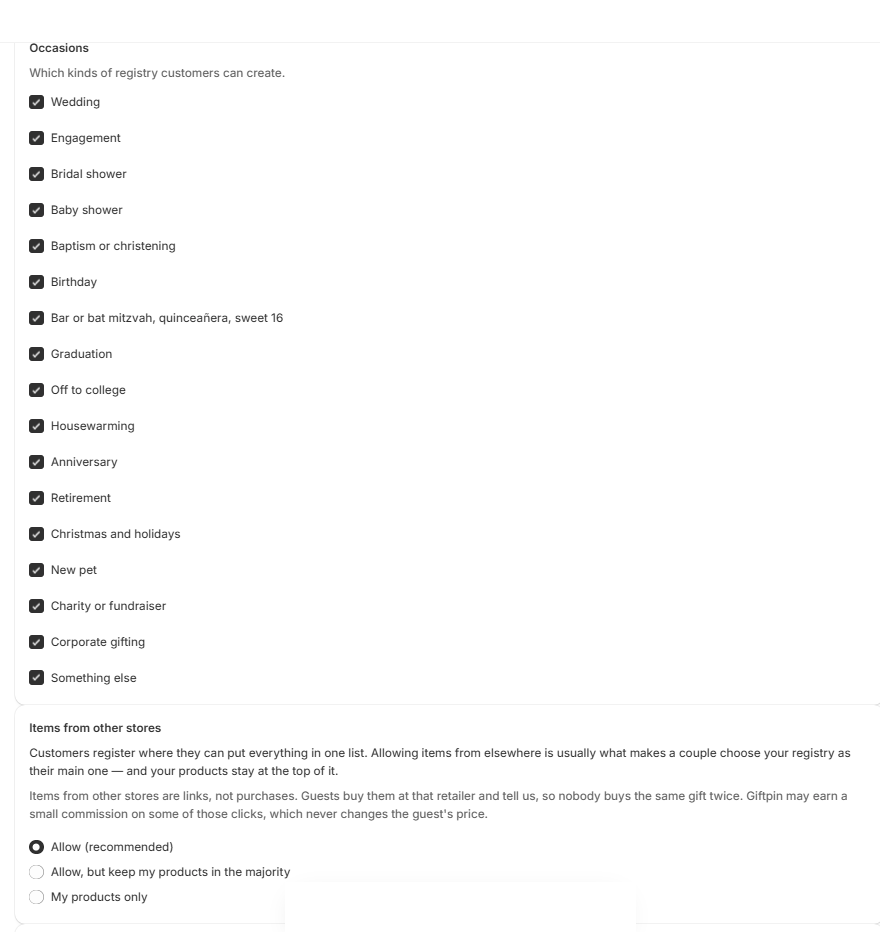
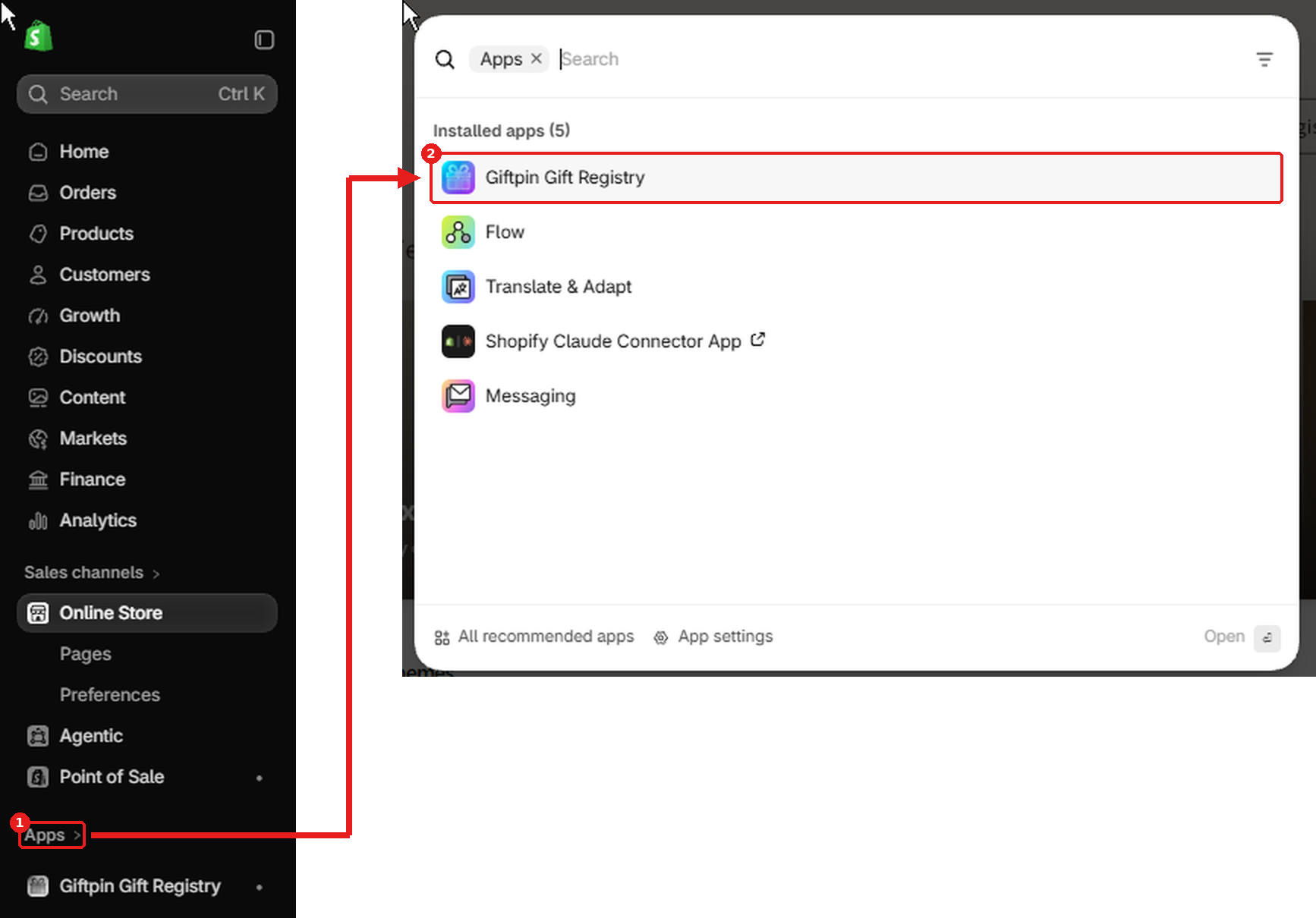
  1. Open Settings. Under Occasions, tick the kinds of registry customers can create: weddings, baby showers, birthdays, graduations, housewarmings and more.
  2. Tick Wish list for a shareable list with no event date, such as a holiday wish list. It is off until you switch it on.
  3. Press Save (top right).
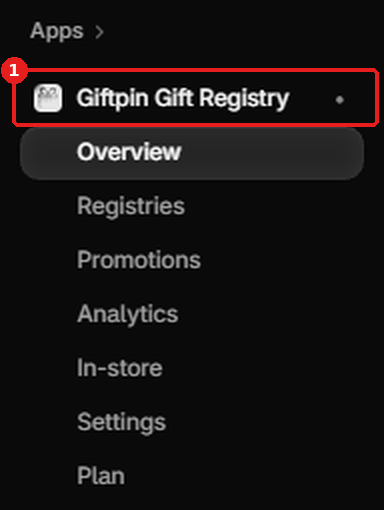
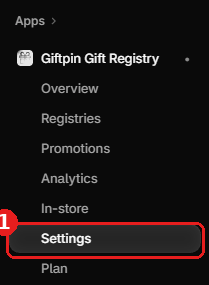
Shopify admin's left menu with Apps boxed in red and numbered 1, and an arrow to the Apps list where Giftpin Gift Registry is boxed and numbered 2Shopify admin's left menu with Giftpin Gift Registry, under Apps, boxed in red and numbered 1, and Giftpin's own menu open below it: Overview, Registries, Promotions, Analytics, In-store, Settings and PlanThe Giftpin menu in the Shopify admin with Settings boxed in red and numbered 1Giftpin Settings showing the Occasions checklist and the Items from other stores choices
5

Decide on items from other stores

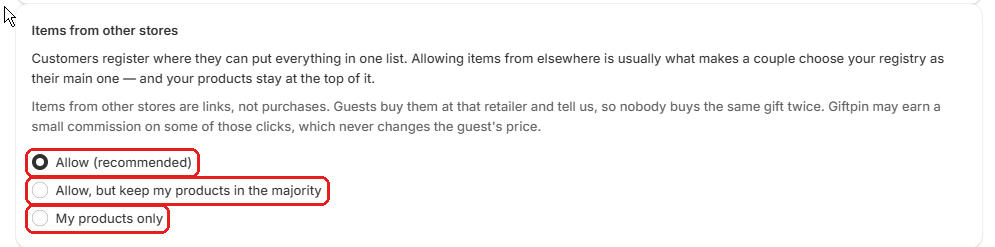
  1. Under Items from other stores, choose Allow (recommended), Allow, but keep my products in the majority or My products only.
  2. Allowing them is what makes customers pick your registry as their main one. Giftpin suggests your closest matching product beside each outside item.
Shopify admin's left menu with Apps boxed in red and numbered 1, and an arrow to the Apps list where Giftpin Gift Registry is boxed and numbered 2Shopify admin's left menu with Giftpin Gift Registry, under Apps, boxed in red and numbered 1, and Giftpin's own menu open below it: Overview, Registries, Promotions, Analytics, In-store, Settings and PlanThe Giftpin menu in the Shopify admin with Settings boxed in red and numbered 1The Items from other stores section of Settings with its three choices boxed in red: Allow, Allow but keep my products in the majority, and My products only
6

Decide what happens when a product sells out

  1. Under Sold-out products, choose Show it as sold out (guests can't add it to their cart) or Hide it from guests until it's back in stock.
  2. Giftpin checks your live stock each time a guest opens a registry. The item always stays on the registry, so it comes back by itself when you restock.
Shopify admin's left menu with Apps boxed in red and numbered 1, and an arrow to the Apps list where Giftpin Gift Registry is boxed and numbered 2Shopify admin's left menu with Giftpin Gift Registry, under Apps, boxed in red and numbered 1, and Giftpin's own menu open below it: Overview, Registries, Promotions, Analytics, In-store, Settings and PlanThe Giftpin menu in the Shopify admin with Settings boxed in red and numbered 1The Sold-out products section of Settings with its two choices boxed in red: show it as sold out, or hide it until it's back in stock
7

Match your store's look and language

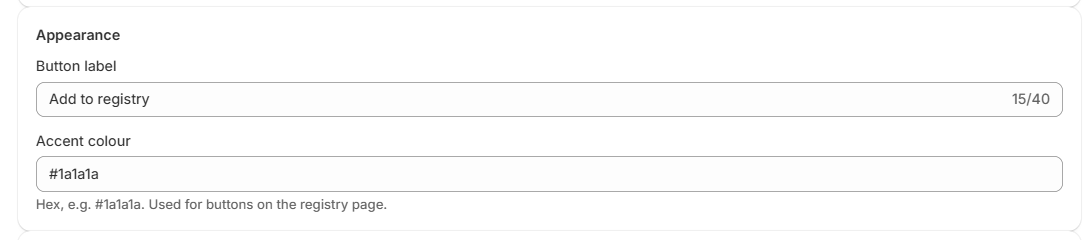
  1. Under Appearance, set the Button label and Accent colour.
  2. Registry page language picks the language guests see on registry pages and in registry emails: English, French, Spanish, German or Brazilian Portuguese.
  3. The Add to registry button and registry links have their own settings in the theme editor: label, icon, colours, size and spacing.
  4. To let shoppers who keep their registry somewhere else use your button too, tick Also offer Babylist or Also offer "Another registry" (copies the product link for sites like Zola) in the button's settings. The button then asks which registry.
  5. With Pro, Your branding adds your logo (Logo image link), colours and font to registry pages and removes the Powered by Giftpin credit.
Shopify admin's left menu with Apps boxed in red and numbered 1, and an arrow to the Apps list where Giftpin Gift Registry is boxed and numbered 2Shopify admin's left menu with Giftpin Gift Registry, under Apps, boxed in red and numbered 1, and Giftpin's own menu open below it: Overview, Registries, Promotions, Analytics, In-store, Settings and PlanThe Giftpin menu in the Shopify admin with Settings boxed in red and numbered 1Giftpin Settings Appearance section with the Button label and Accent colour fields
8

Languages

  1. Guests and registrants see registry pages and emails in the language you pick under Appearance → Registry page language. Giftpin's own admin pages follow your Shopify admin language where Shopify shares it with the app, and otherwise your browser's language.
  2. The names and notes people type, and your product titles, stay as they were written.
Shopify admin's left menu with Apps boxed in red and numbered 1, and an arrow to the Apps list where Giftpin Gift Registry is boxed and numbered 2Shopify admin's left menu with Giftpin Gift Registry, under Apps, boxed in red and numbered 1, and Giftpin's own menu open below it: Overview, Registries, Promotions, Analytics, In-store, Settings and PlanThe Giftpin menu in the Shopify admin with Settings boxed in red and numbered 1The Appearance section of Settings with the Registry page language menu boxed in red
9

Set privacy

  1. Under Privacy, choose whether to Hide who gave what until the event date, and whether to turn on the public find-a-registry page (Enable the public find-a-registry page). Only registries whose owners opt in are listed there. It is off until you tick it: until then, the Find link on your storefront asks visitors for the registry link instead. A registry is listed there only if its owner also picks Listed publicly under Who can see this on their manage page.
Shopify admin's left menu with Apps boxed in red and numbered 1, and an arrow to the Apps list where Giftpin Gift Registry is boxed and numbered 2Shopify admin's left menu with Giftpin Gift Registry, under Apps, boxed in red and numbered 1, and Giftpin's own menu open below it: Overview, Registries, Promotions, Analytics, In-store, Settings and PlanThe Giftpin menu in the Shopify admin with Settings boxed in red and numbered 1The Privacy section of Settings with its two tick boxes boxed in red: hide who gave what until the event date, and enable the public find-a-registry page

More tools

Smaller features you may not have noticed.

10
Move registries over from another app

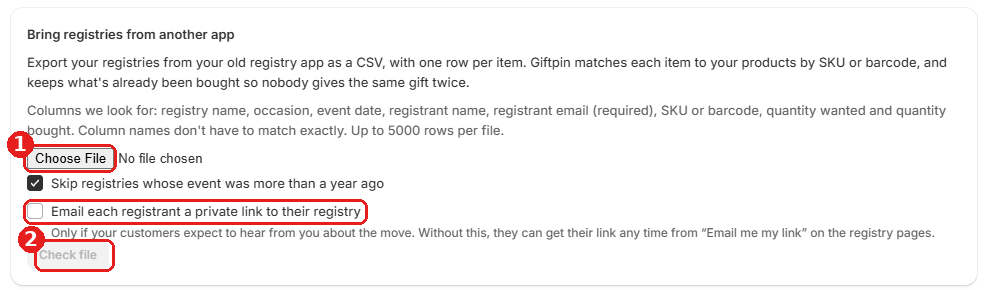
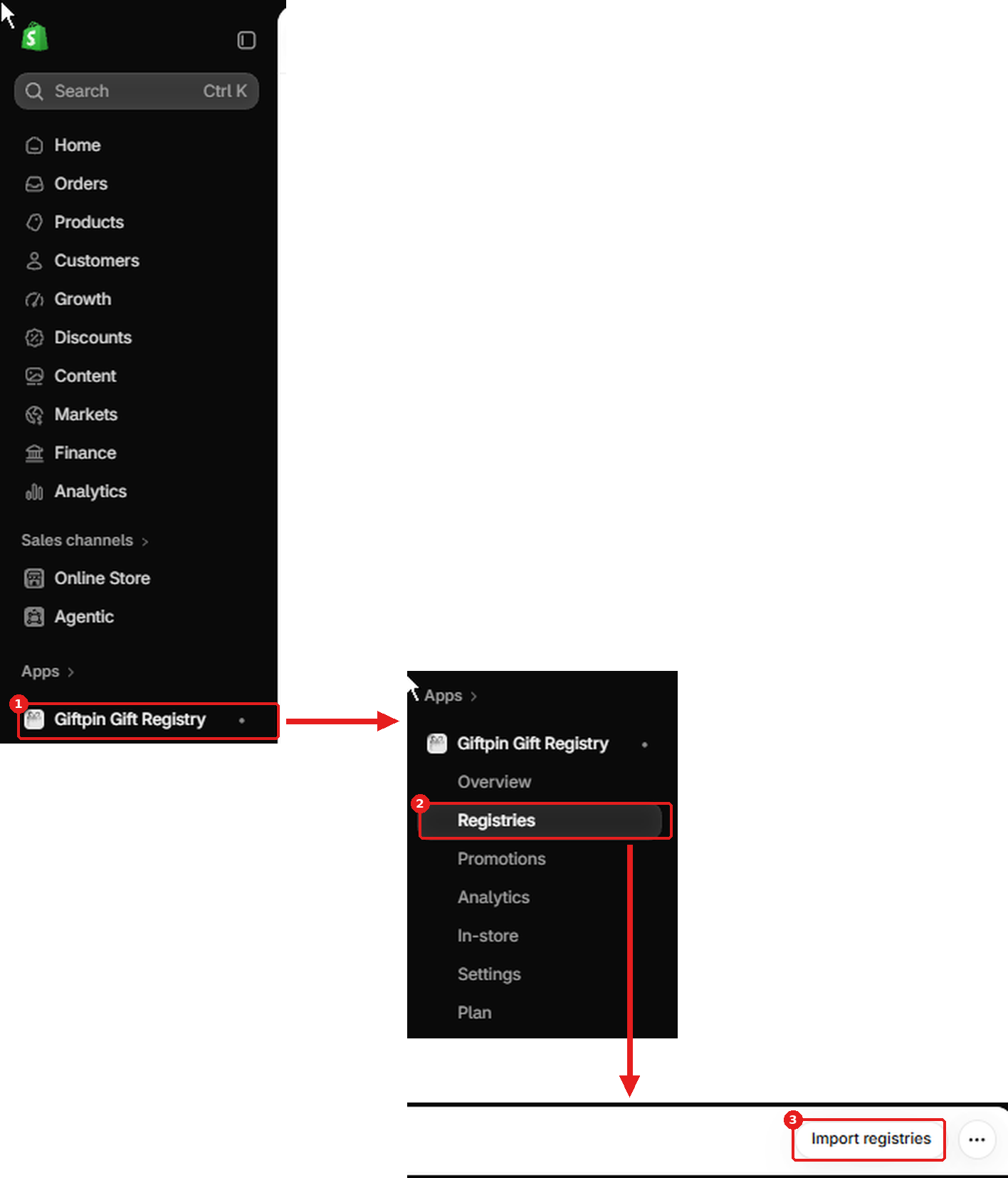
  1. Open Registries and click Import registries. Export your registries from your old registry app as a CSV with one row per item, and choose it under CSV file.
  2. Giftpin matches each item to your products by SKU or barcode and shows what it will do before anything changes. Tick Email each registrant a private link to their registry only if your customers expect to hear from you about the move.
Shopify admin left menu with Giftpin Gift Registry boxed and numbered 1, an arrow to Giftpin's menu with Registries boxed and numbered 2, and an arrow down to the Registries page with the Import registries button boxed and numbered 3The Bring registries from another app page: Choose File boxed and numbered 1, the optional email checkbox boxed, and Check file boxed and numbered 2
11

Registry panels in the Shopify admin

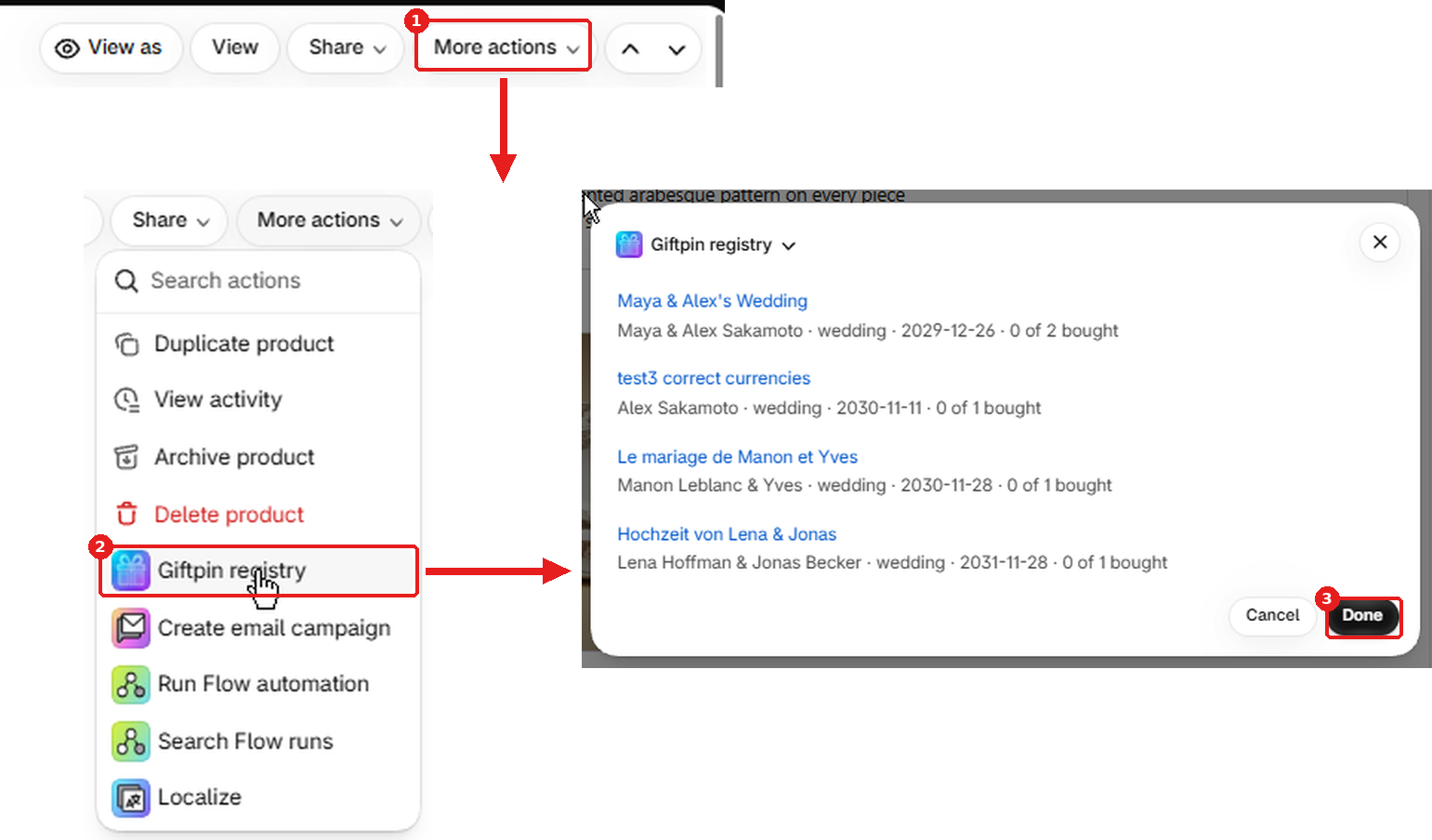
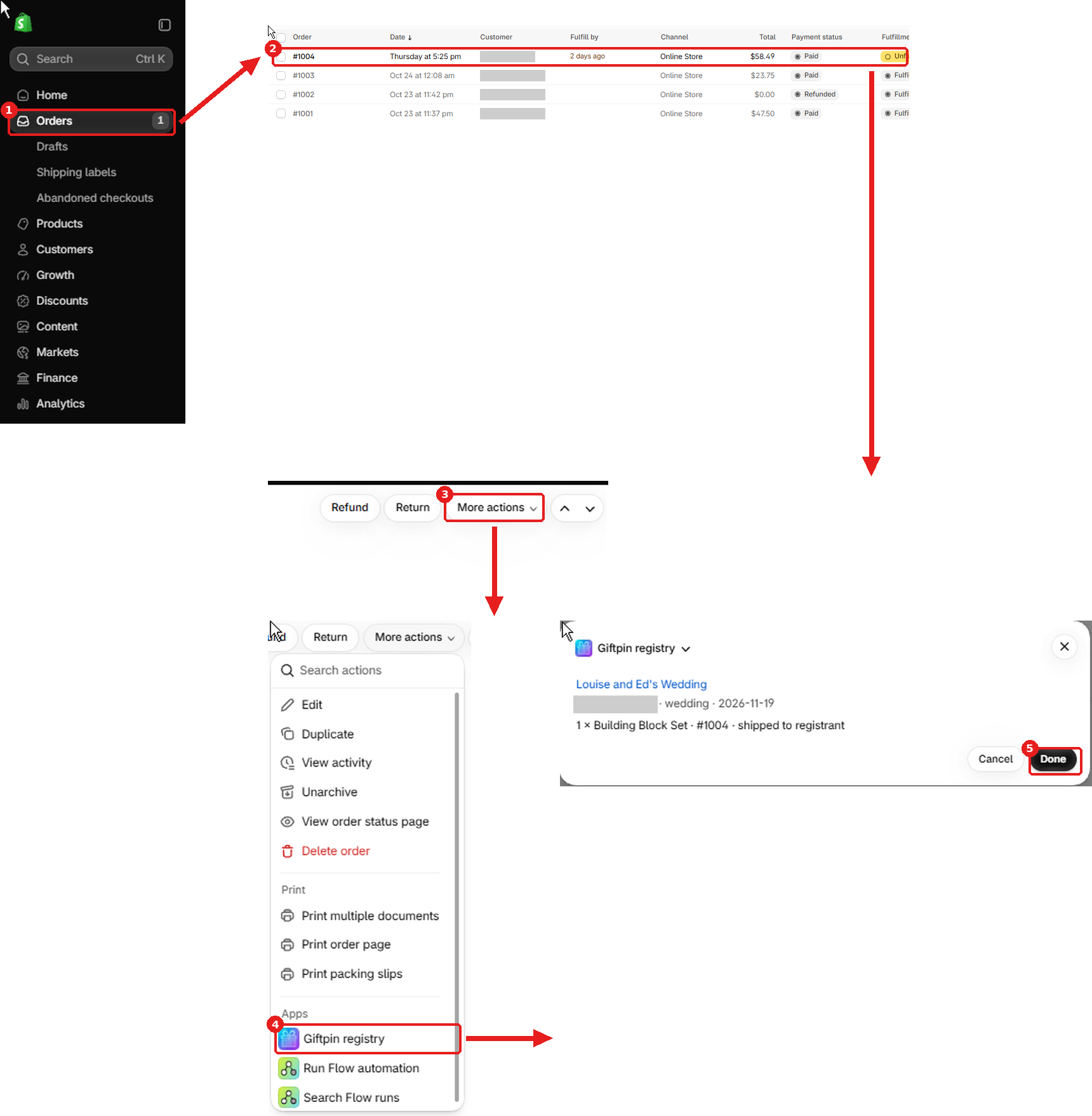
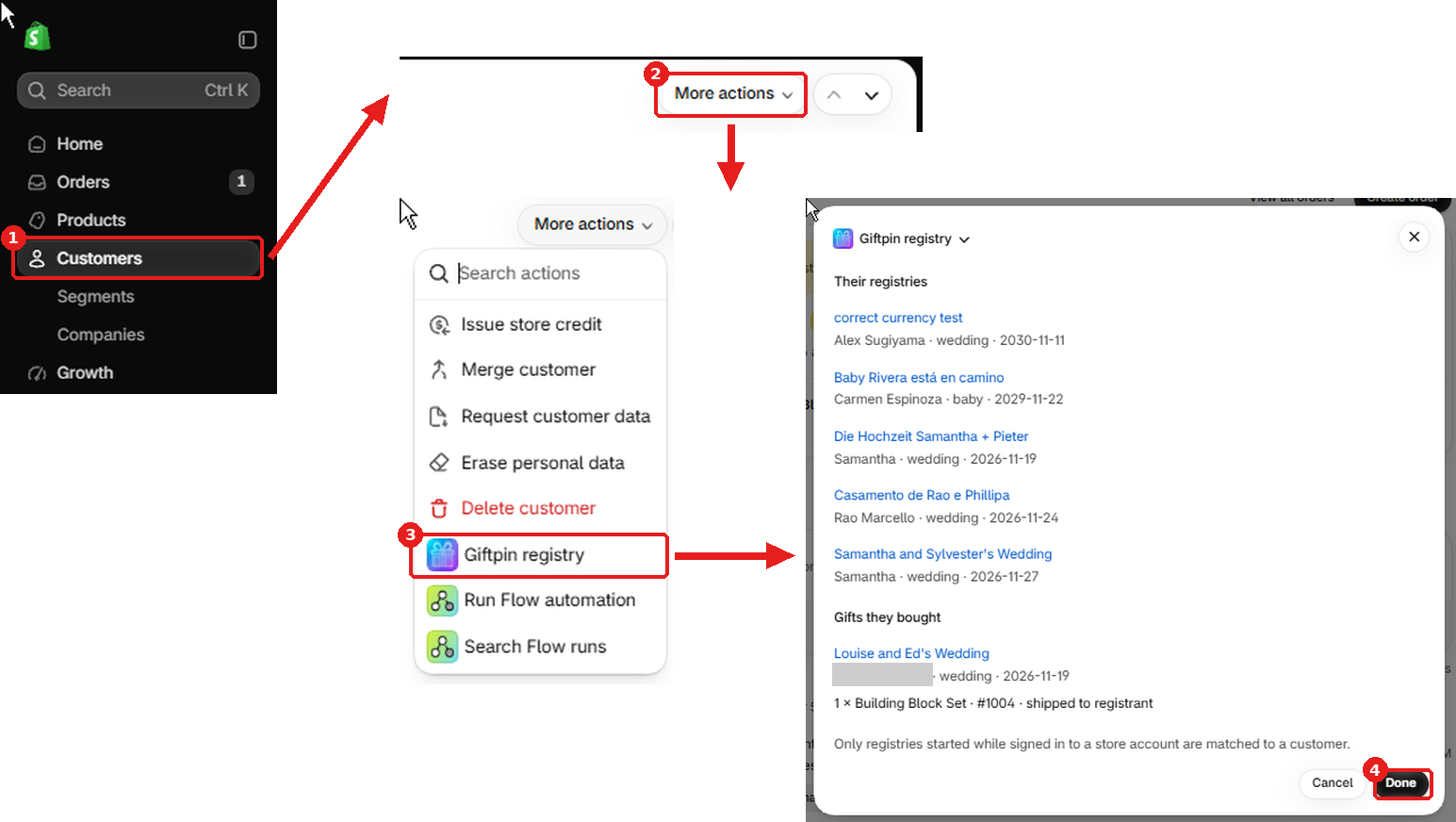
  1. On an order, a customer or a product page in your Shopify admin, open More actions → Giftpin registry to see which registry it belongs to, whether that person has one, or which registries include the product.
  2. If you don't see it, the extensions need shopify app deploy once from the app's code.
A product page in the Shopify admin: More actions boxed and numbered 1, an arrow to the open menu with Giftpin registry boxed and numbered 2, and the panel that opens listing the registries that include the product, with Done boxed and numbered 3Shopify admin: Orders boxed and numbered 1, an arrow to the orders list with an order boxed and numbered 2, then the order page's More actions button numbered 3, the open menu with Giftpin registry boxed and numbered 4, and the panel showing which registry the order was credited to, with Done numbered 5. The buyer's name is coveredShopify admin: Customers boxed and numbered 1, an arrow to a customer page with More actions numbered 2, the open menu with Giftpin registry boxed and numbered 3, and the panel listing their registries and the gifts they bought, with Done numbered 4. A buyer's name is covered

Ready to give your customers a registry?

Free to install from the Shopify App Store.