 Giftpin
Registry guide
Create your gift registry
and share one link
How to start a Giftpin registry, add gifts from this store and anywhere else, and share it with your guests. Bold text is exactly what you'll see on screen.
Get started
Start your registry
- On the store's website, click Create a gift registry (usually under the header or in the menu). You can also press Add to registry on any product, and you'll be asked to start one.
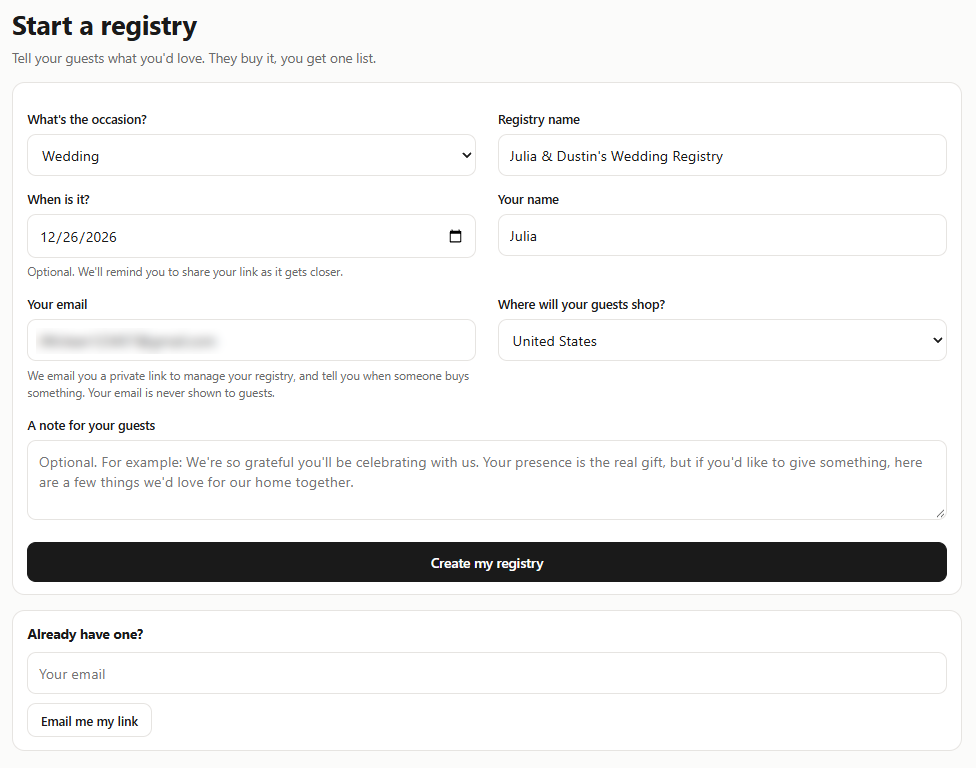
- Choose the occasion under What's the occasion?, then fill in Registry name, When is it?, Your name and Your email.
- Under Where will your guests shop?, pick your guests' country. Giftpin uses it to suggest stores for things this store doesn't sell.
- Optionally write A note for your guests, then click Create my registry.
Keep your private link
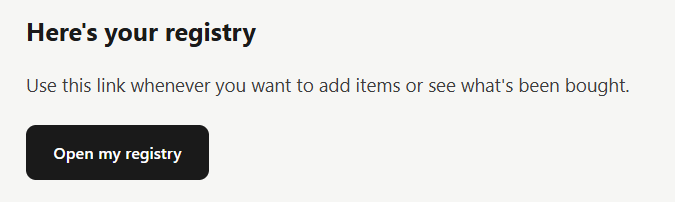
- Giftpin emails you a private link to manage your registry. You don't need an account or a password: that link is your way in, so keep the email. It works for 90 days.
- Lost it, or it stopped working? On the store's Create a gift registry page, under Already have one?, enter your email and click Email me my link.
- Never share this link. Anyone who has it can edit your registry. Guests get a different link (see Share it below).
Add your gifts
From this store, and from any other website.
Add this store's products
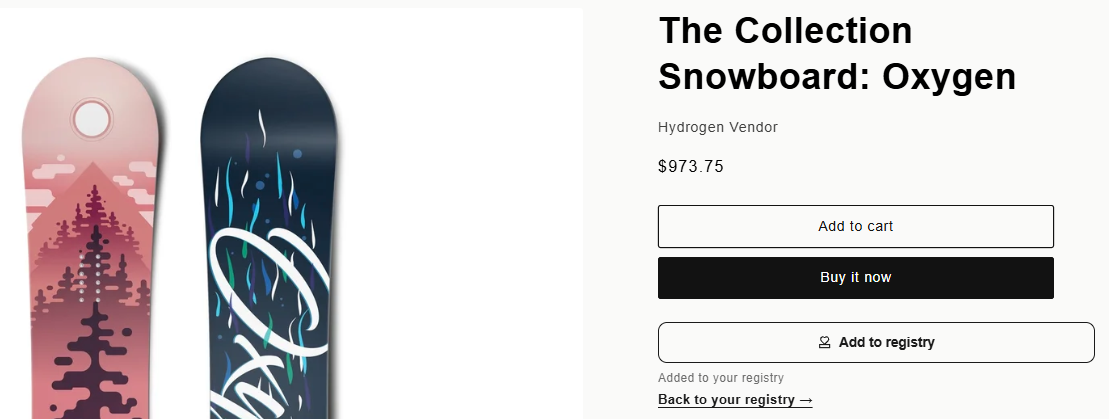
- Browse the store and click Add to registry on any product page. You'll see Added to your registry and a Back to your registry link.
- Pressing it again on the same product asks how many you'd like in total, so nothing gets added twice by accident.
- Using a different phone or computer? Open your private link from the email there first, so the button knows which registry is yours.
Add gifts from any other website
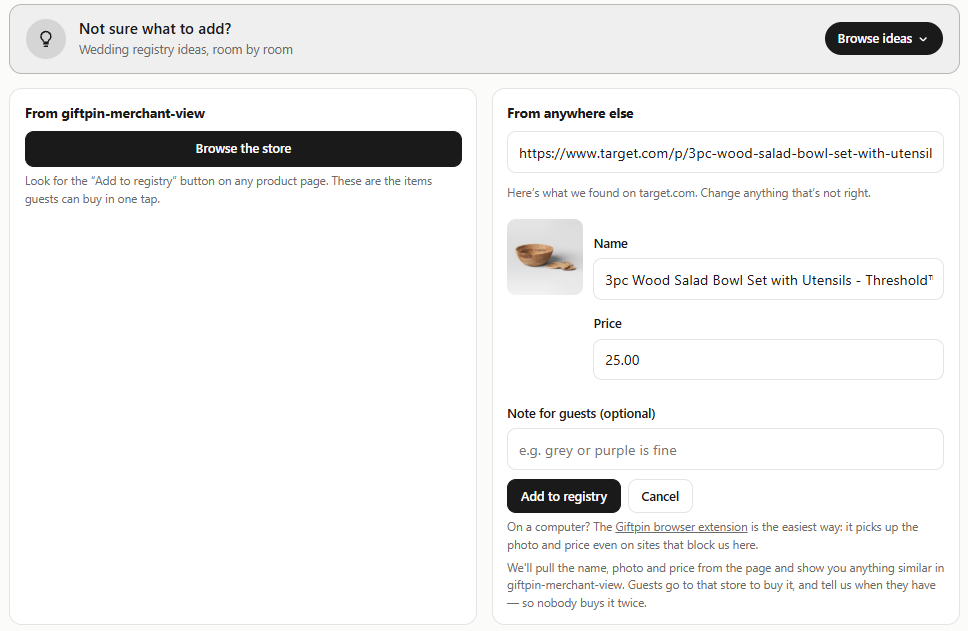
- On your registry, go to Add items, paste the product's address into Product link and click Look it up. Giftpin fills in the name, photo and price.
- Some big stores block this. If that happens, type the Name and Price yourself and click Add to registry.
- Giftpin may show something similar from this store. Click Preview & swap to see it, or keep your original.
Or use the Chrome extension
- On a computer, install the Giftpin extension for Chrome.
- On your registry, under Connect the browser extension, click Copy connection link. Open the extension, paste it into Manage link and click Connect. You only do this once.
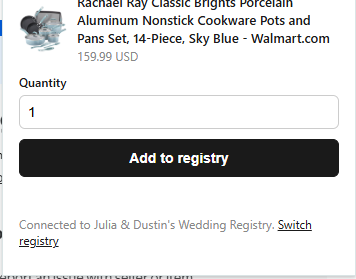
- Now, on any product page on any website, open the extension, choose the Quantity and click Add to registry.
Fine-tune your list
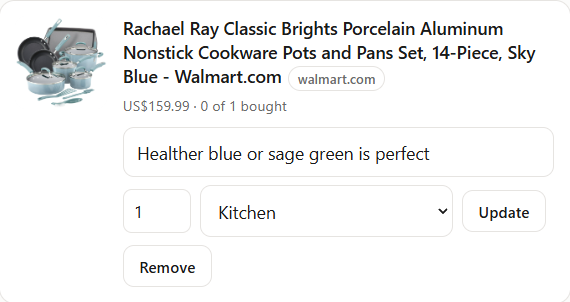
- Under Your list, open any item to change How many you'd like, add a Note for guests (a size or colour, say) or pick a Category, then click Update.
- Not sure what to add? Your registry suggests ideas for your occasion.
Share it
Share it with guests
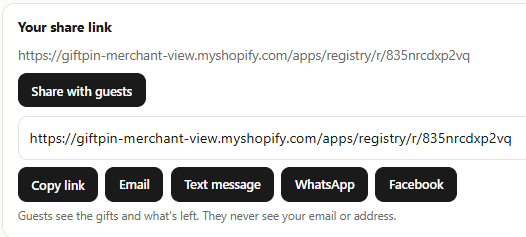
- At the top of your registry, click Share with guests and send the link by email, text message, WhatsApp or Facebook, or click Copy link.
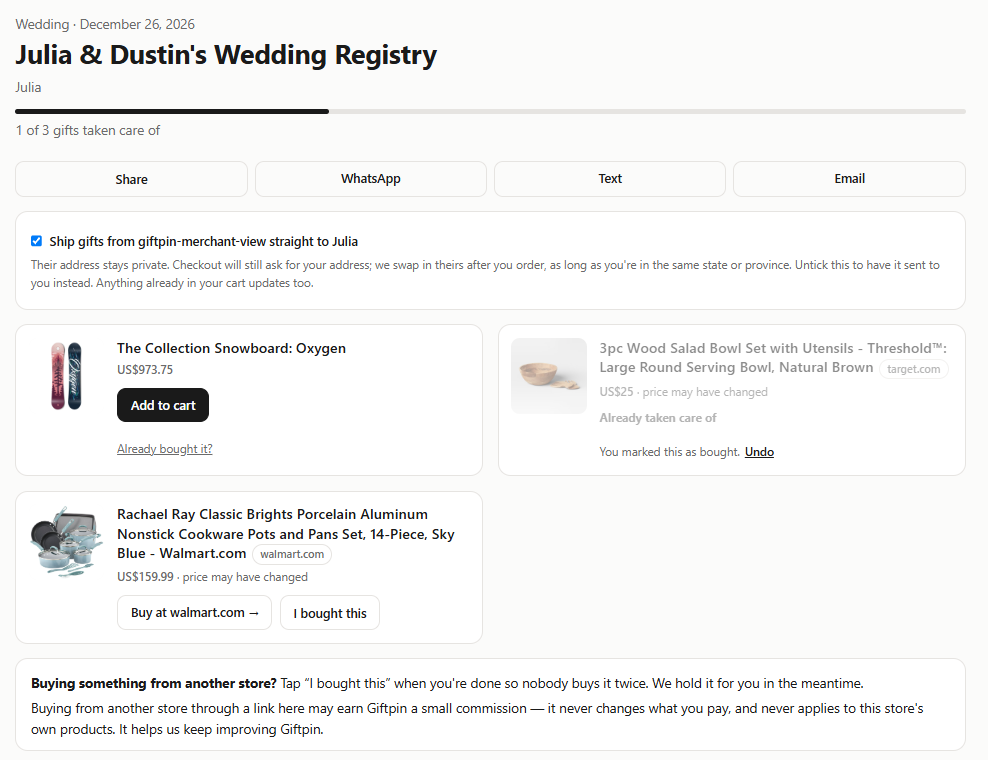
- Guests see your gifts and what's still needed. They never see your email or address, and they don't need an account.
Choose who can see it
- Under Registry settings, use Who can see this: Anyone with the link (recommended), Anyone with the link and a password, or Listed publicly, so guests can search for it on the store's Find a gift registry page.
- Click Save changes. The same section lets you change the name, occasion, date and note.

Have gifts shipped to you
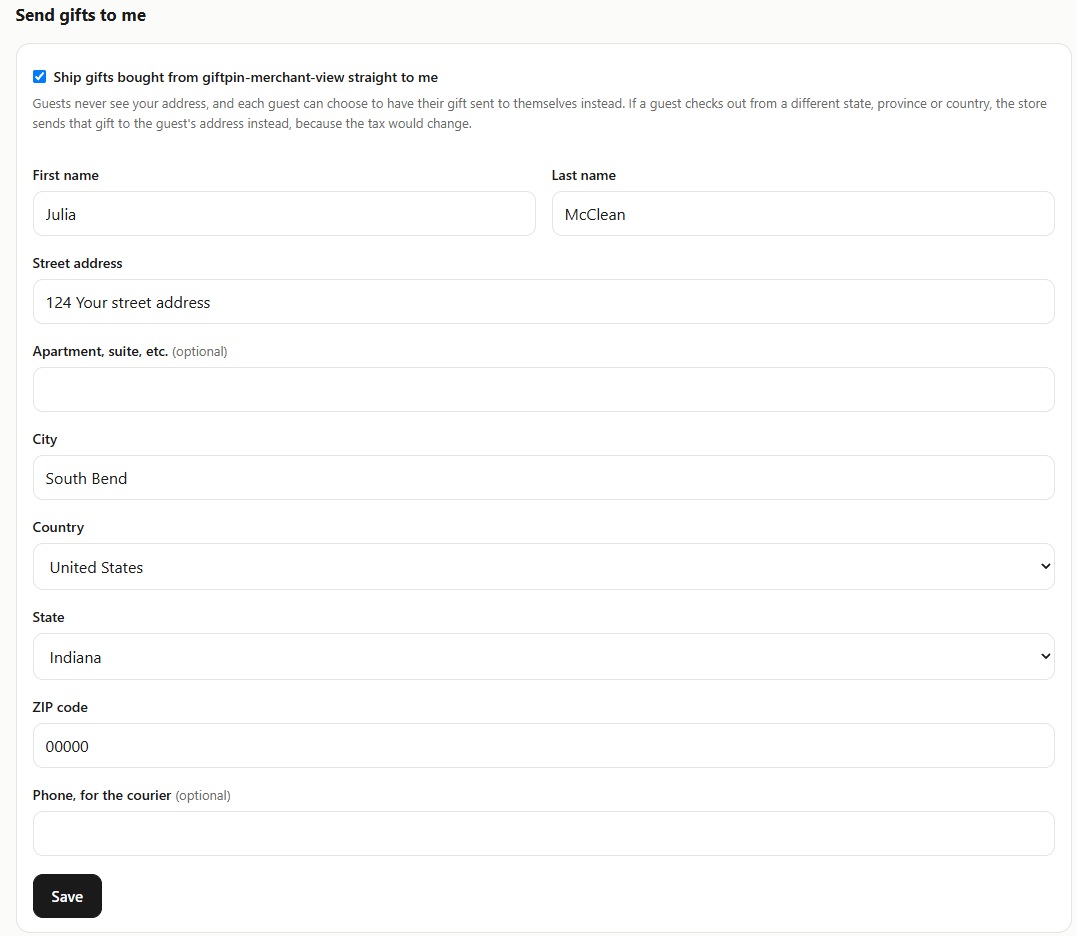
- Under Send gifts to me, tick the box and enter your shipping address, then click Save. Gifts bought from this store are then sent straight to you.
- Guests never see your address, and each guest can still choose to have their gift sent to themselves.
Common questions
How do guests avoid buying the same thing?
Orders from this store update your registry automatically. For gifts from other websites, guests tap I bought this after buying, and the item shows as taken. Guests who change their mind can undo it for 24 hours.
How do I know who gave me what?
Your registry has a Who gave what list for your thank-you notes, and Giftpin emails you when someone buys a gift.
Can guests chip in toward something big?
If the store offers it, yes. Your registry can turn an item into a group gift, or hold a cash fund for a honeymoon or a house, paid as the store's gift cards.
Can I delete my registry?
Yes. Under Registry settings, click Delete registry. This removes every item and the record of who bought what, and it can't be undone.