 Giftpin
Pro guide Shopify store owners
Giftpin Pro
funds, gift cards and automation
Start Pro, set up group gifts and cash funds, sell gift cards on giftpin.app, send automatic emails and after-event discounts, run promotions, read analytics and use in-store mode. Bold text is exactly what you'll see on screen.
Do these steps in order. They are numbered 1 to 20 across the Setup, Customize and Pro pages, and the numbers carry on from one page to the next.
Pro
Optional extras for stores that want more.
12
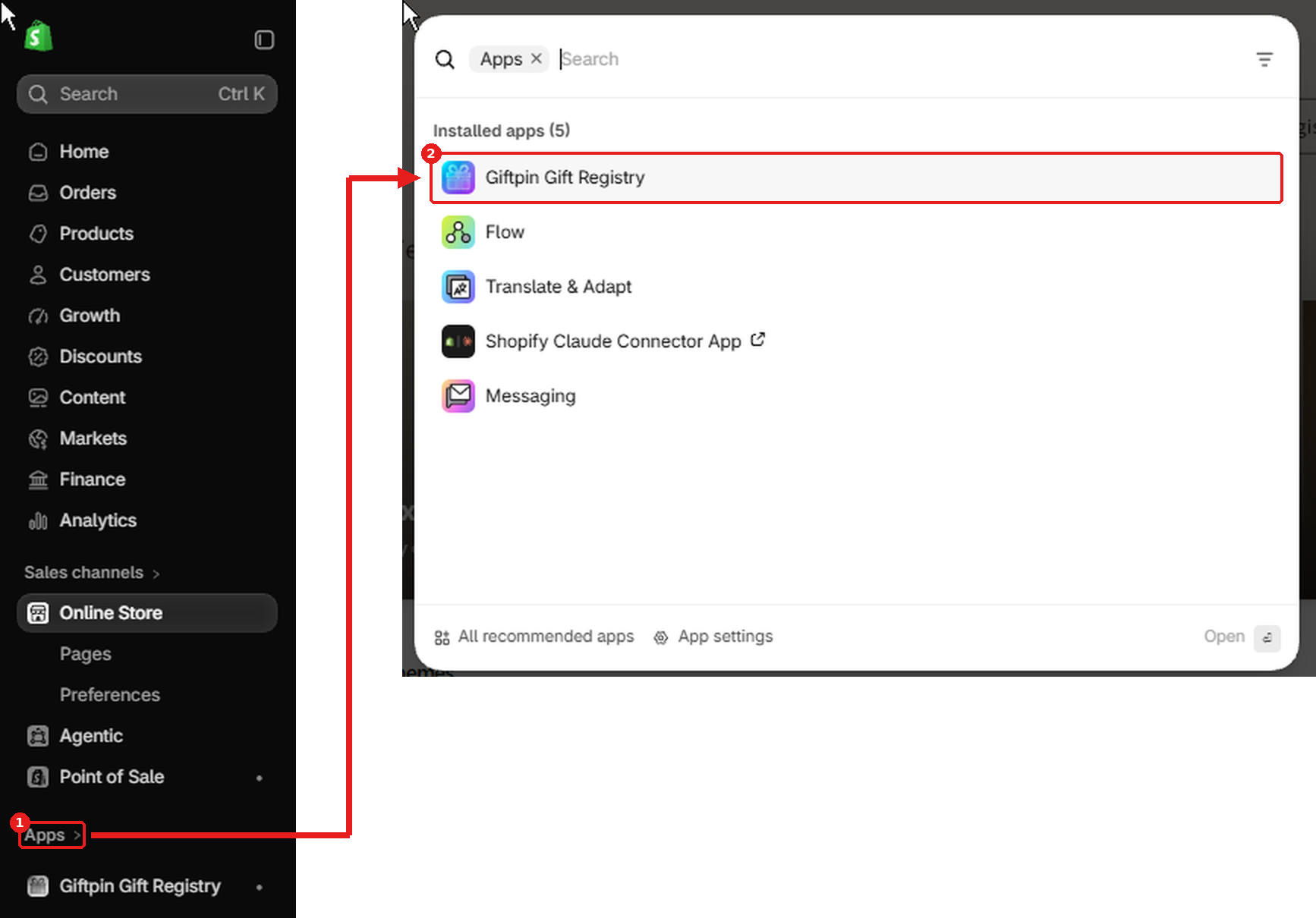
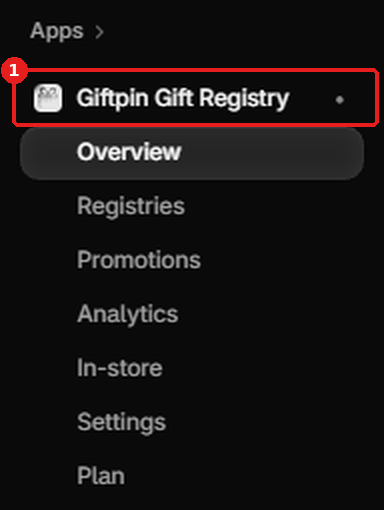
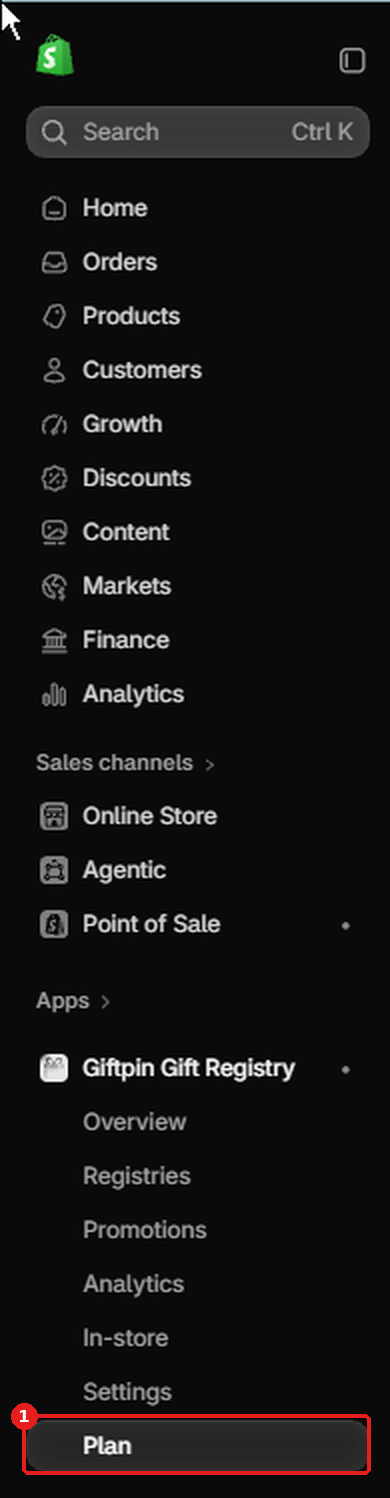
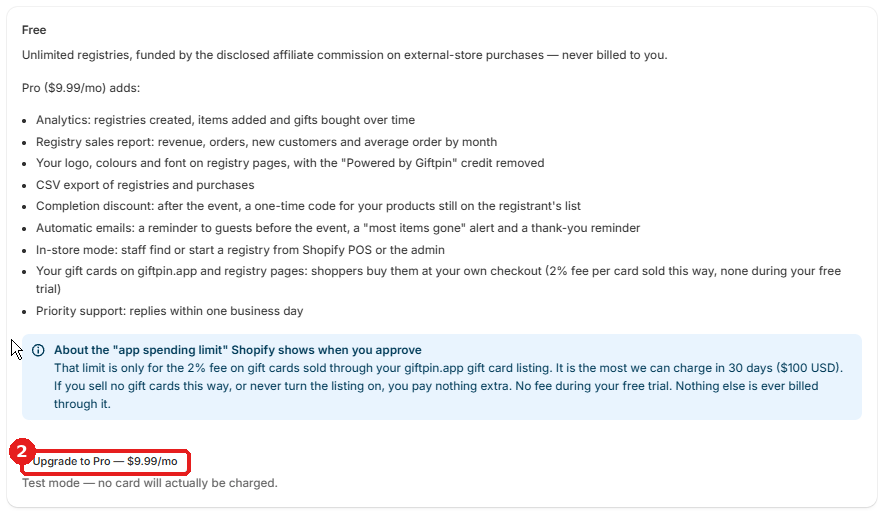

Start Pro
- Open Plan in Giftpin's menu and click the upgrade button. You get a 14-day free trial, then Giftpin Pro is $9.99/month. Cancel Pro is on the same page.
13
Offer registry perks (Pro)
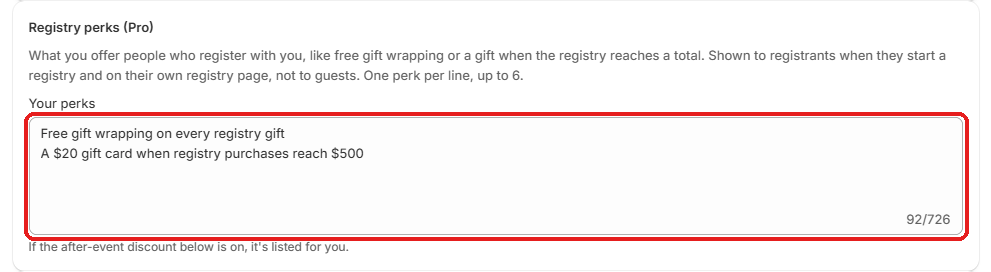
- Under Registry perks (Pro), write what you offer people who register with you, one per line, in Your perks: free gift wrapping, a gift when the registry reaches a total, and so on.
- Registrants see them while they create a registry. Press Save.
14
Group gifts and funds
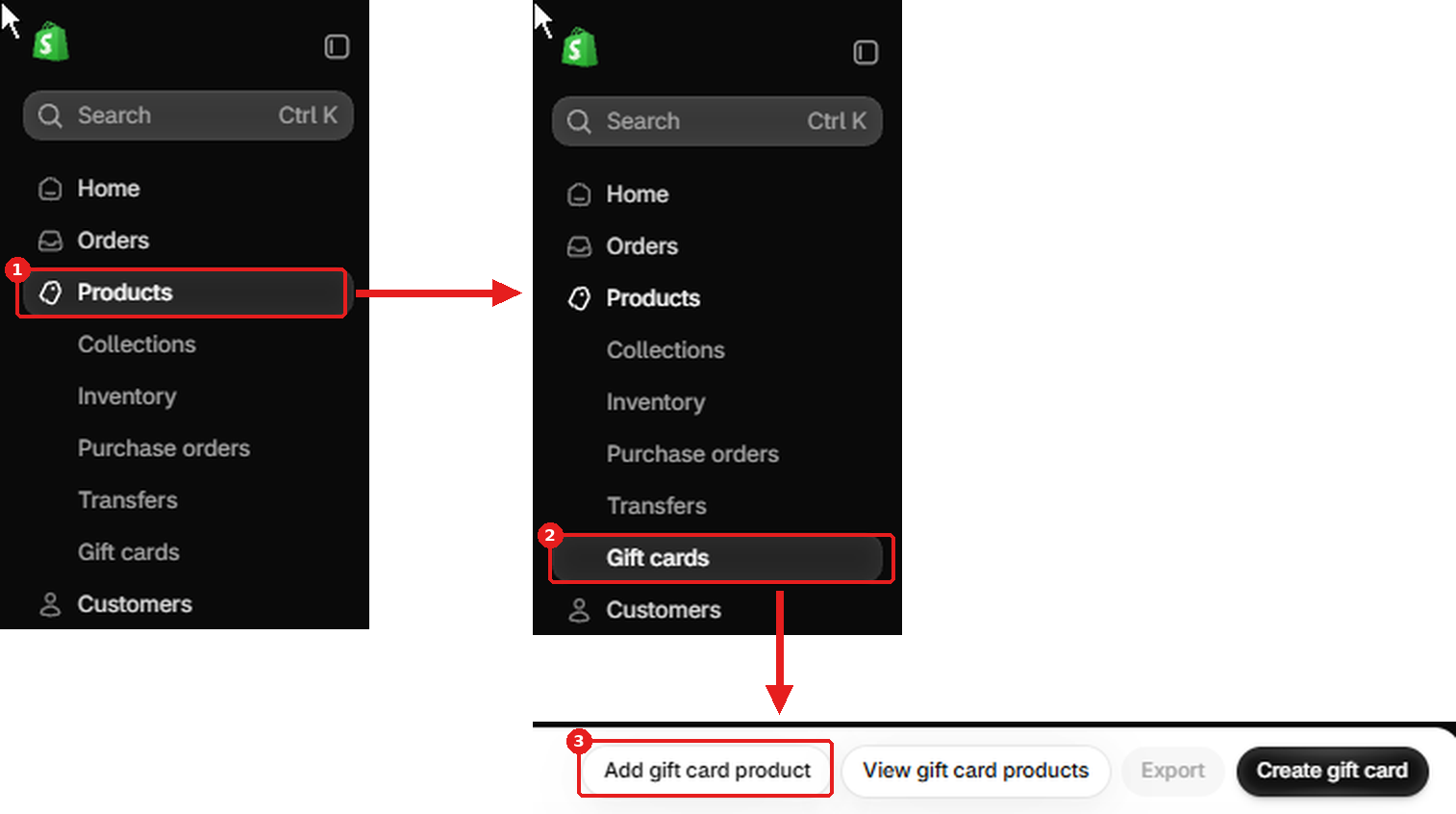
- In your Shopify admin, go to Products → Gift cards and click Add a gift card product.
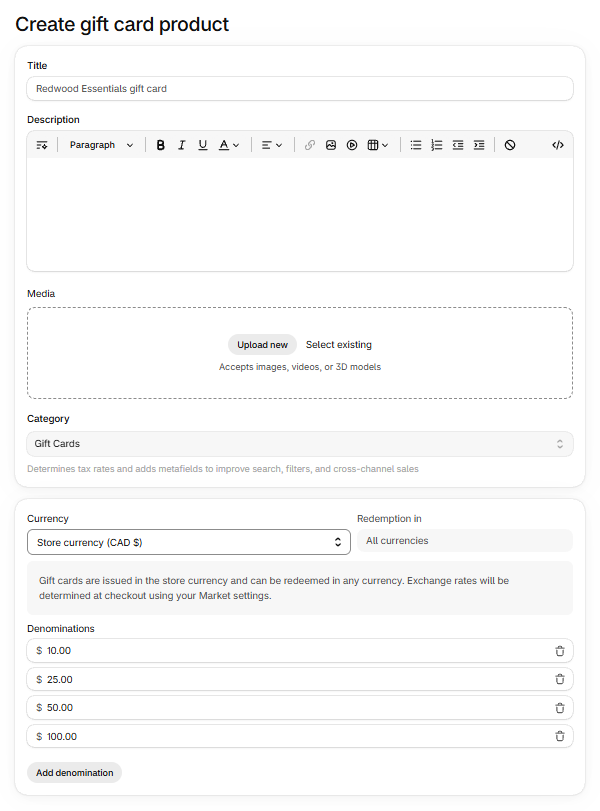
- Give it a title and a few denominations, such as 25, 50 and 100. To sell it on giftpin.app, at least one must be 500 or less, in your store's currency. Leave Online Store ticked under Sales channels and apps and click Save gift card product.
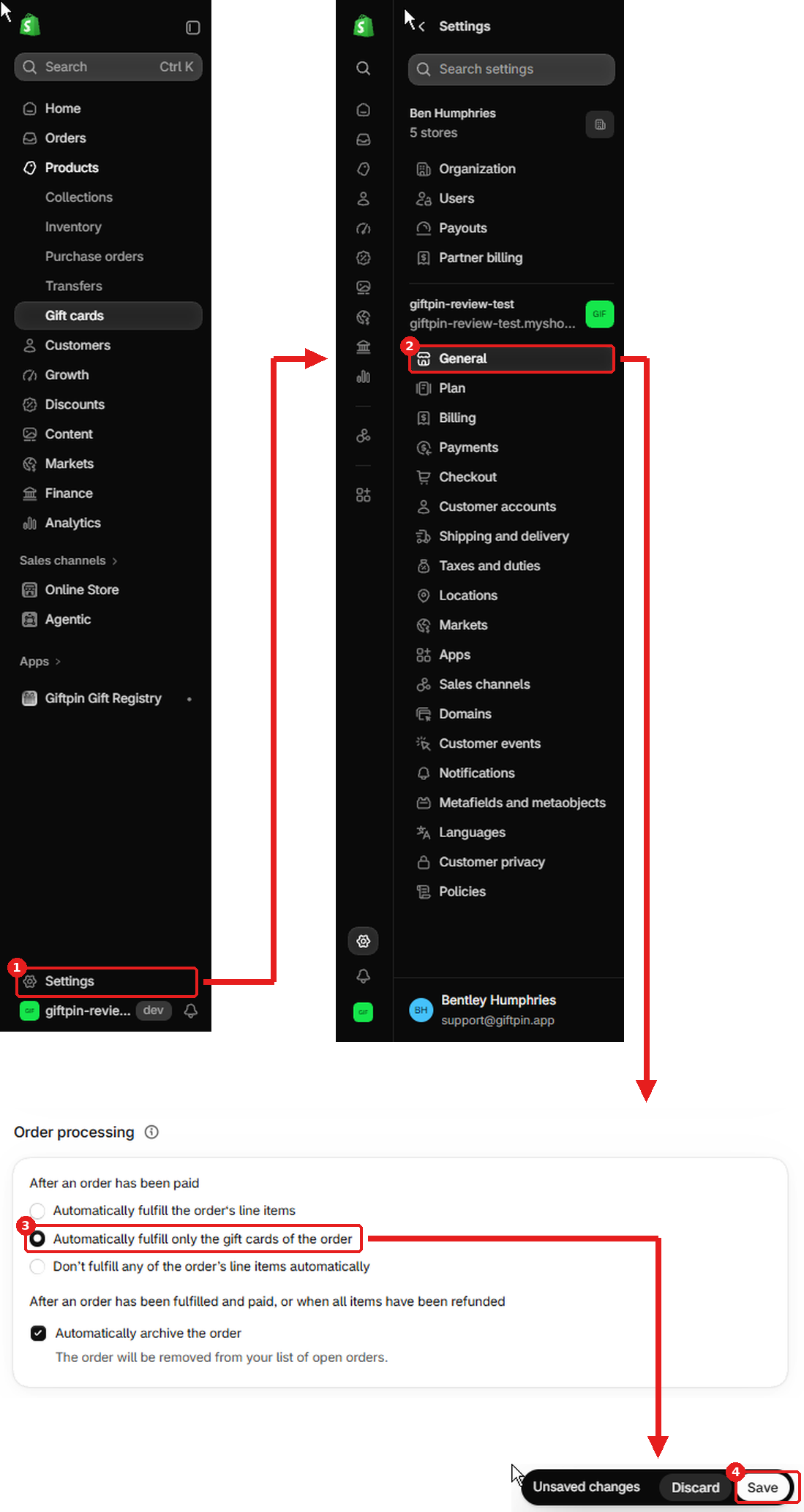
- In Settings → General → Order processing, choose Automatically fulfill only the gift cards. Shopify only sends a gift card once its order is fulfilled.
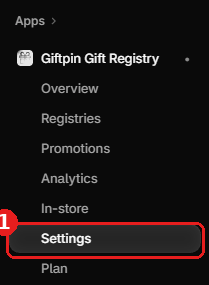
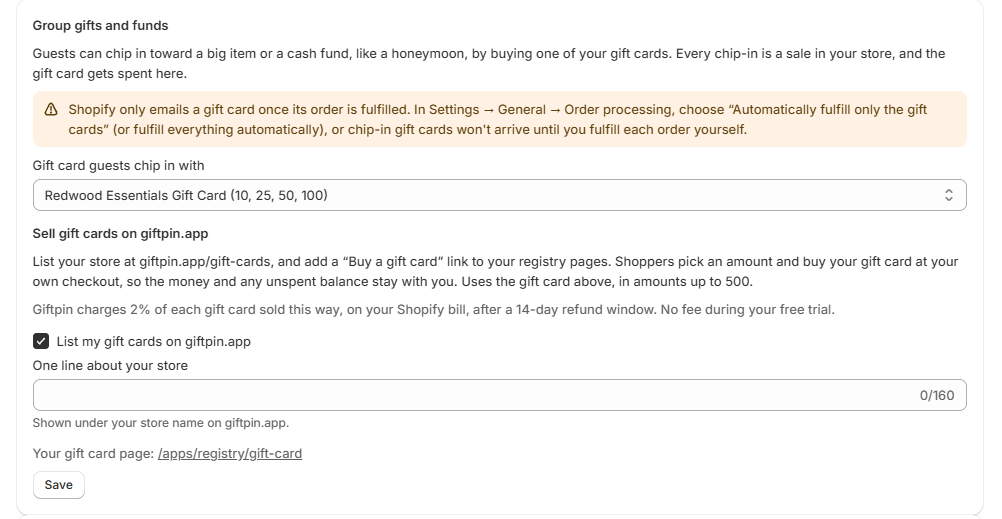
- In Giftpin, open Settings. If it was already open, reload the page so the new gift card shows up. Under Group gifts and funds, pick your gift card in Gift card guests chip in with and press that section's own Save.
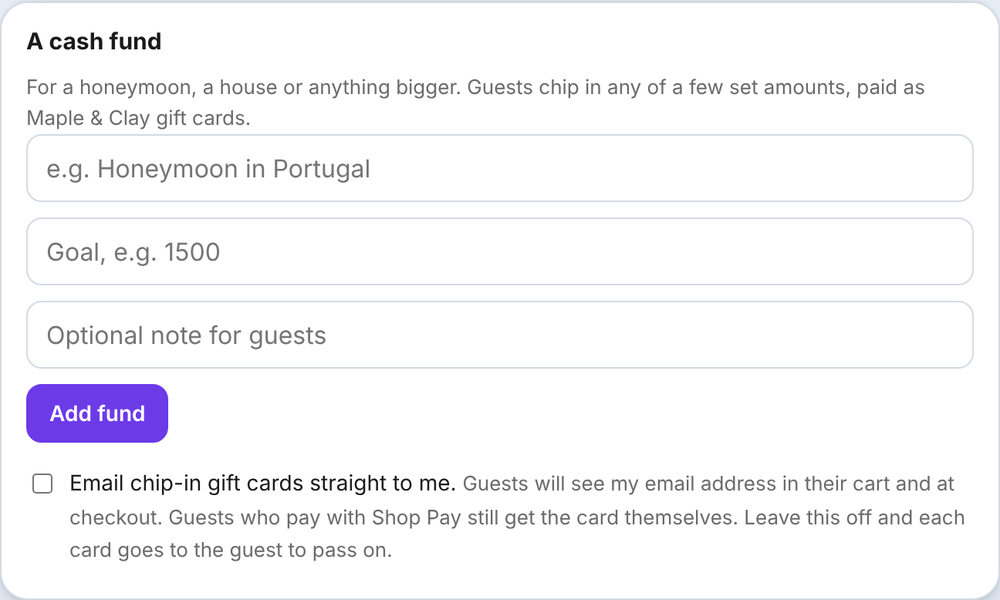
- Registrants can now add a cash fund on their manage page: under A cash fund, they give it a name and a goal and tap Add fund. Guests chip in with your gift card's amounts, toward a fund or a big item.
What registrants will see on their registry's manage page. This box won't open here; there is nothing to click.
15
Sell gift cards on giftpin.app
- This needs Pro and the gift card from the step above, picked in Gift card guests chip in with. If that still says Off, your store isn't listed and Giftpin shows a warning when you save.
- In Giftpin, open Settings. Under Sell gift cards on giftpin.app, tick List my gift cards on giftpin.app, add One line about your store, and press that section's Save.
- Your store now appears at giftpin.app/gift-cards, under your country, and your registry pages get a Rather give a gift card? link. Shoppers buy your gift card at your own checkout, so you keep the money and any unspent balance. Gift cards sold this way show up in Giftpin's Analytics.
- Giftpin charges 2% of each gift card sold this way, on your Shopify bill, 14 days after the sale so a refunded card is never charged. There's no fee during your free trial.
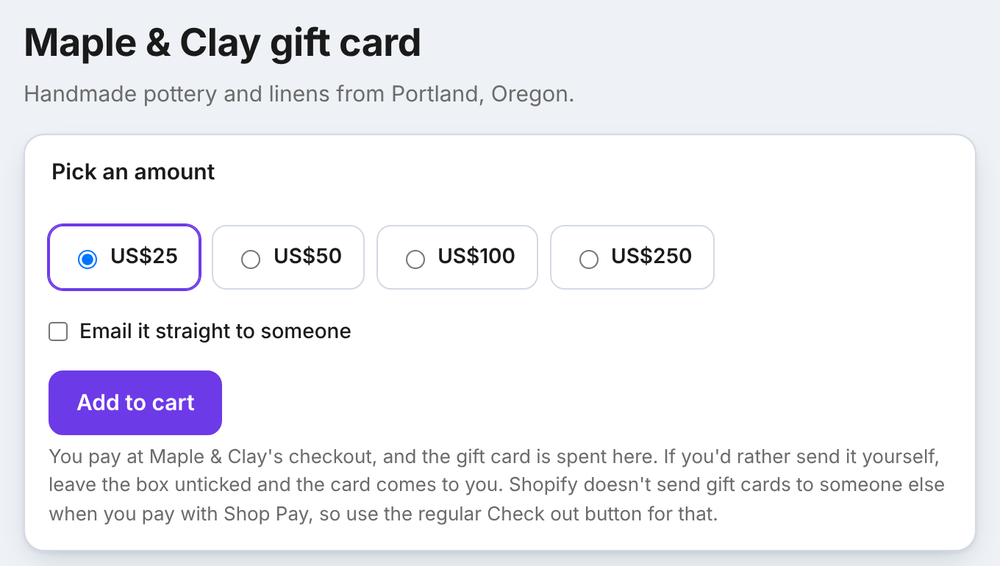
What shoppers will see on your store's gift card page.
16
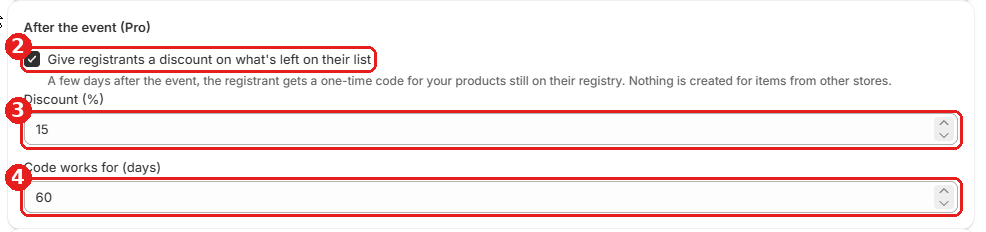
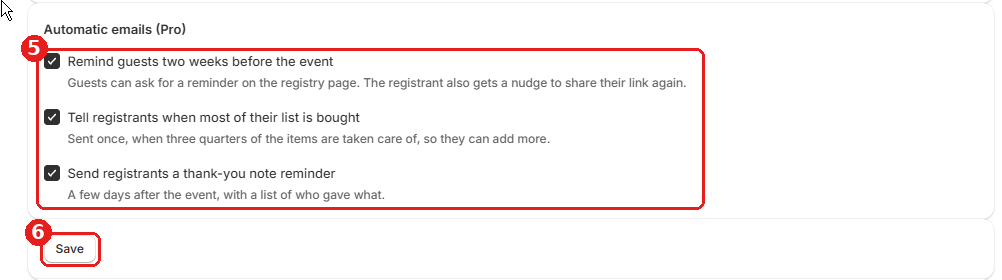

After-event discount and automatic emails
- Under After the event (Pro), turn on Give registrants a discount on what's left on their list, and set Discount (%) and Code works for (days).
- Under Automatic emails (Pro), choose Remind guests two weeks before the event, Tell registrants when most of their list is bought and Send registrants a thank-you note reminder.
- Press Save (top right). To try them without waiting a day, use Run now at the bottom of Settings.
17
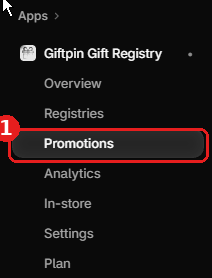
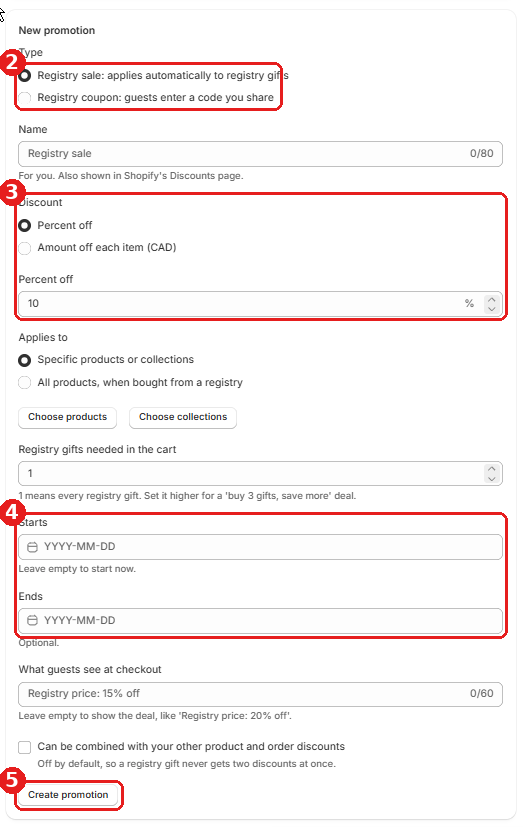

Registry promotions
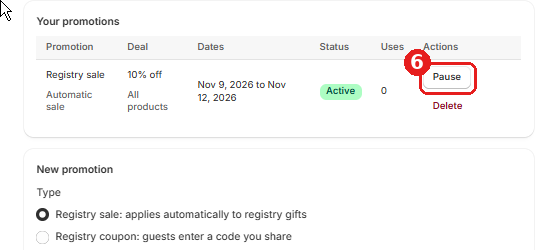
- Open Promotions. Under New promotion, choose Registry sale: applies automatically to registry gifts or Registry coupon: guests enter a code you share, set the discount and dates, and click Create promotion.
- A promotion only applies to gifts added to the cart from a registry page. The same product bought the usual way keeps its normal price.
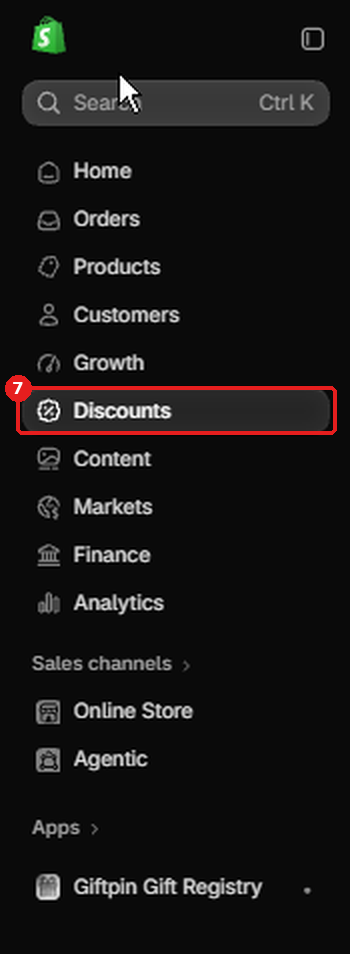
- Promotions also appear on Shopify's Discounts page, starting with “Giftpin:”.
18

Analytics and sales report
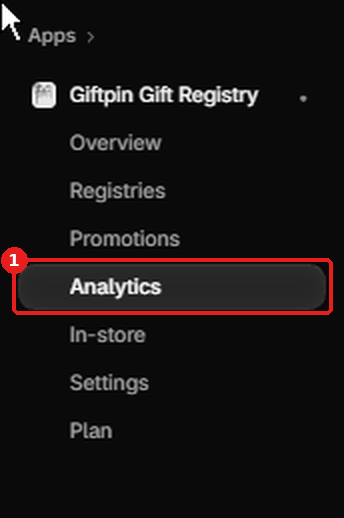
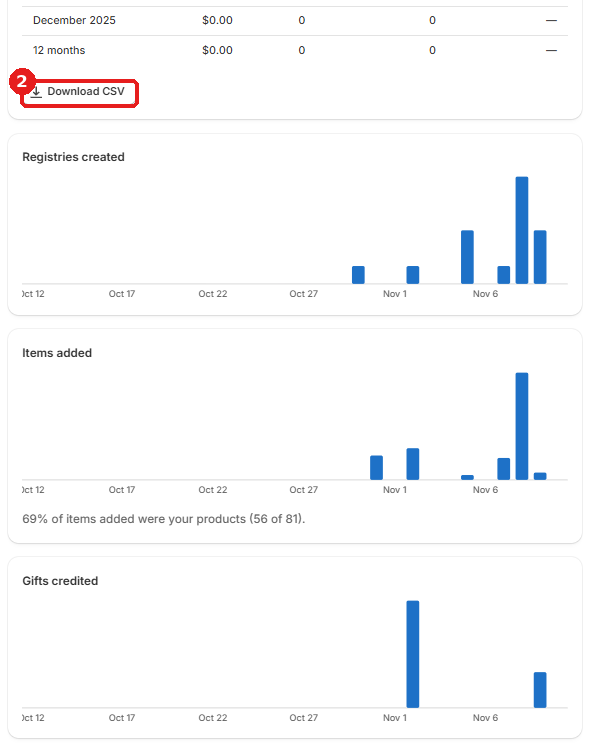
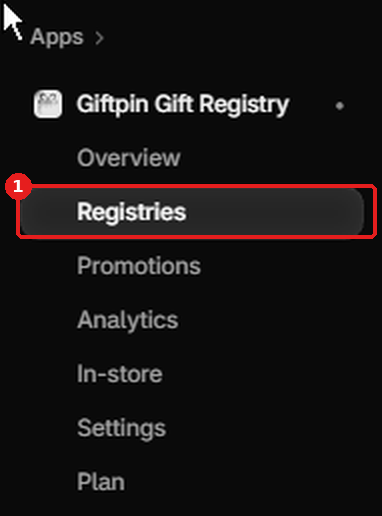
- Open Analytics for registries created, items added and gifts bought over time, where gifts were bought, and a month-by-month sales report. Download CSV exports the report.
- Under Registries, Registries CSV and Purchases CSV export registries and purchases.
19


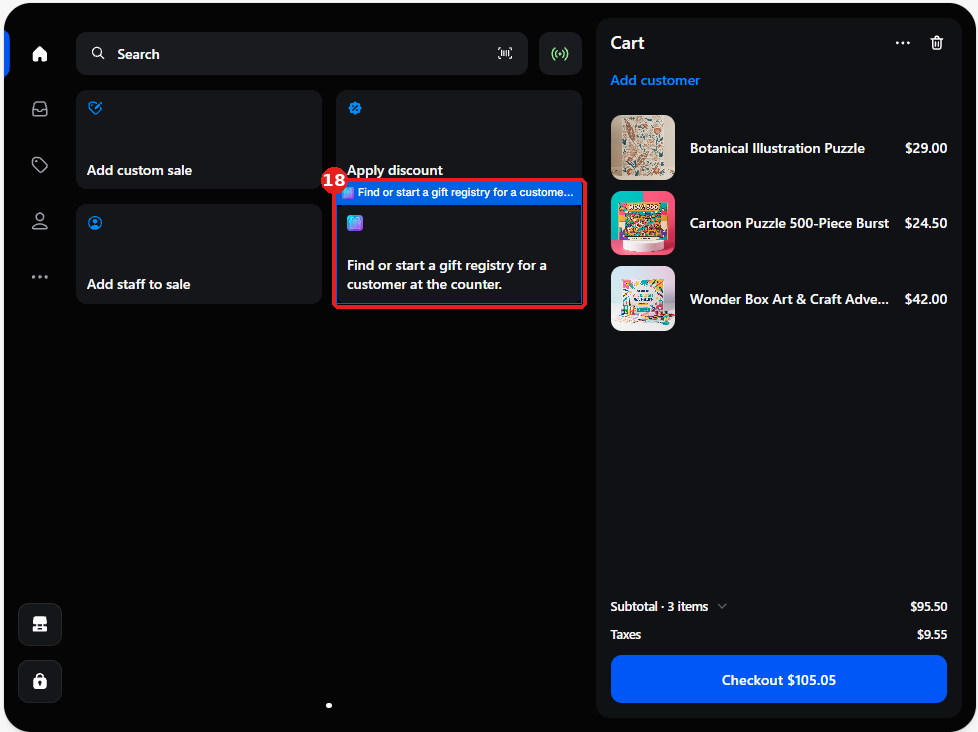
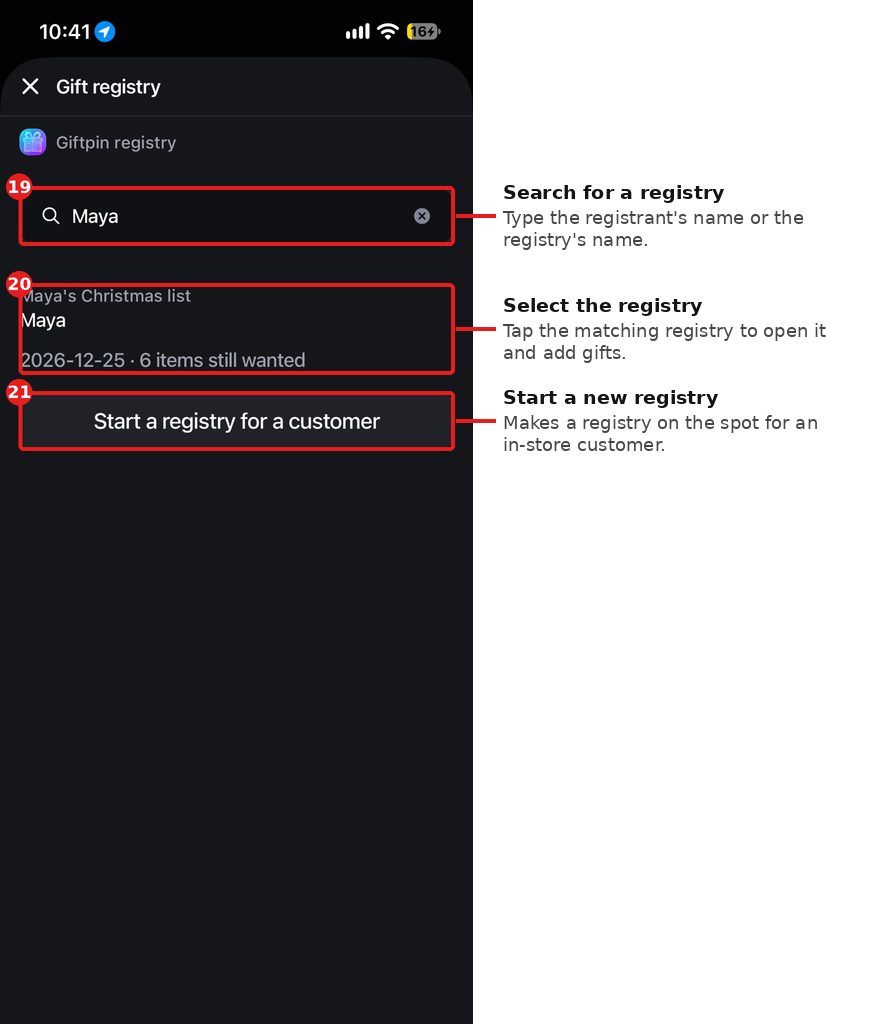


In-store mode and Shopify POS
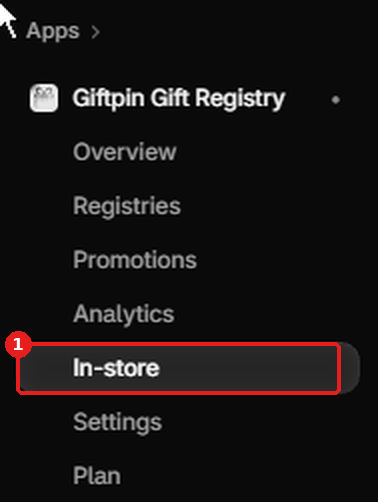
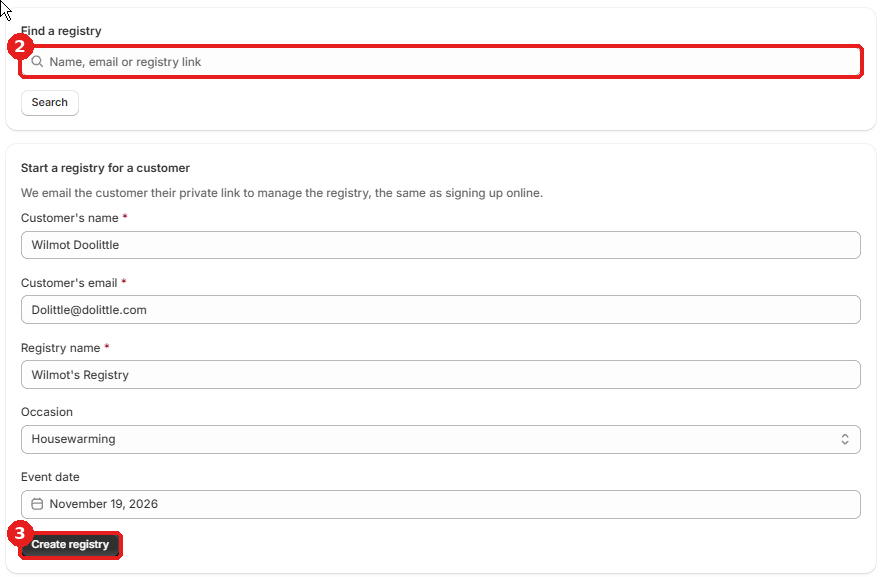
- Open In-store in Giftpin's menu to find a customer's registry or start one for them at the counter.
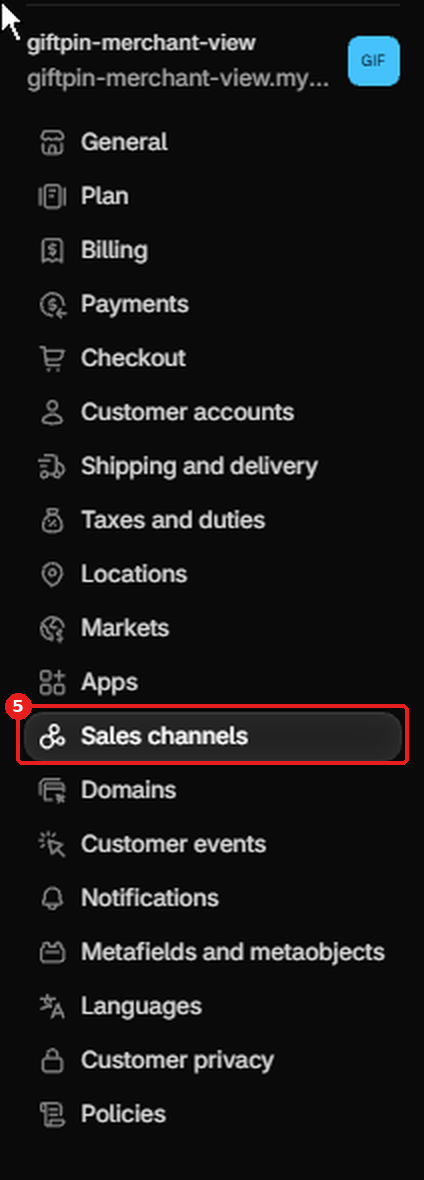
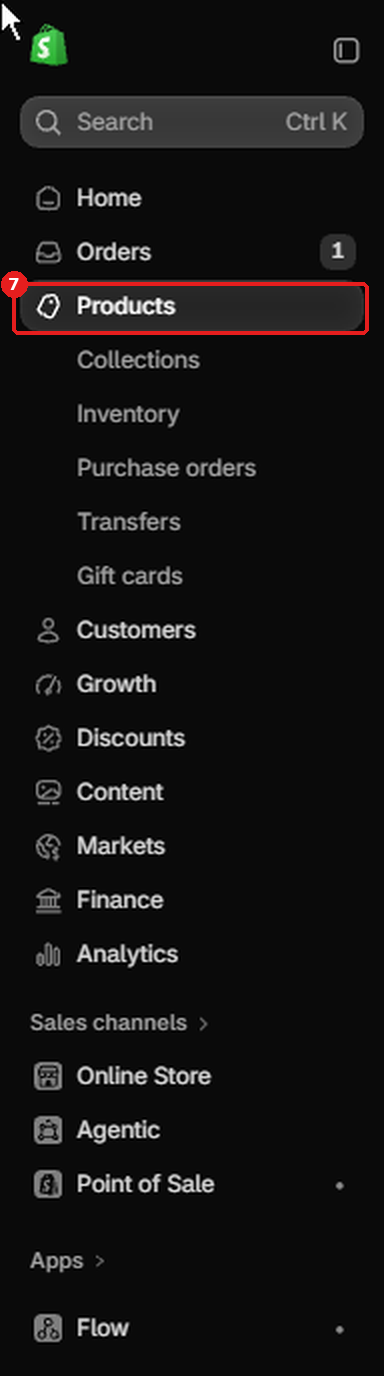
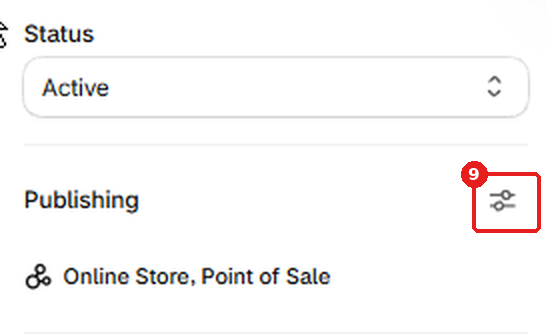
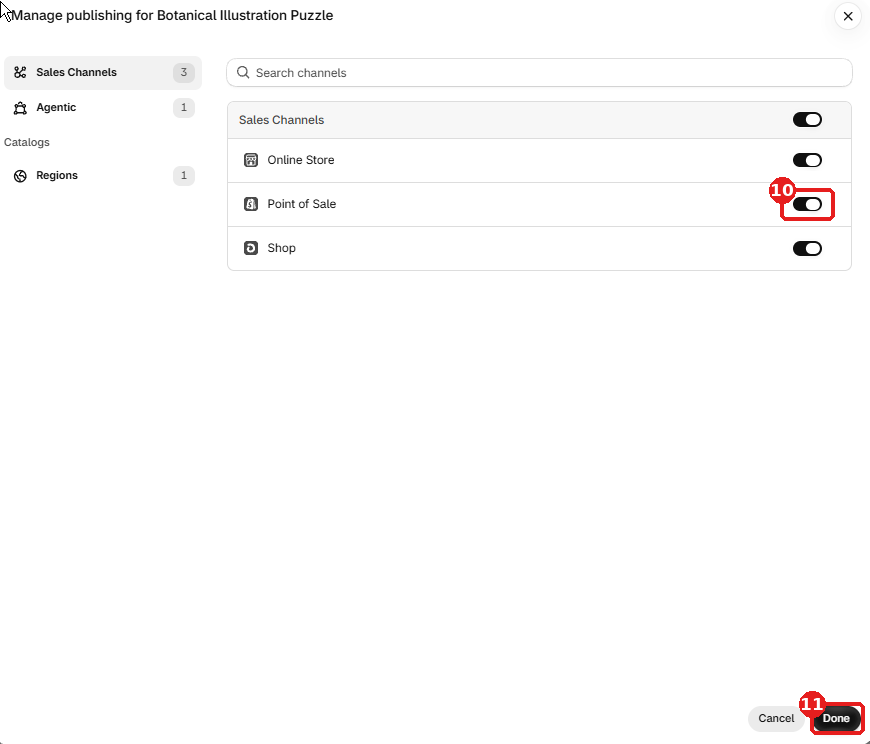
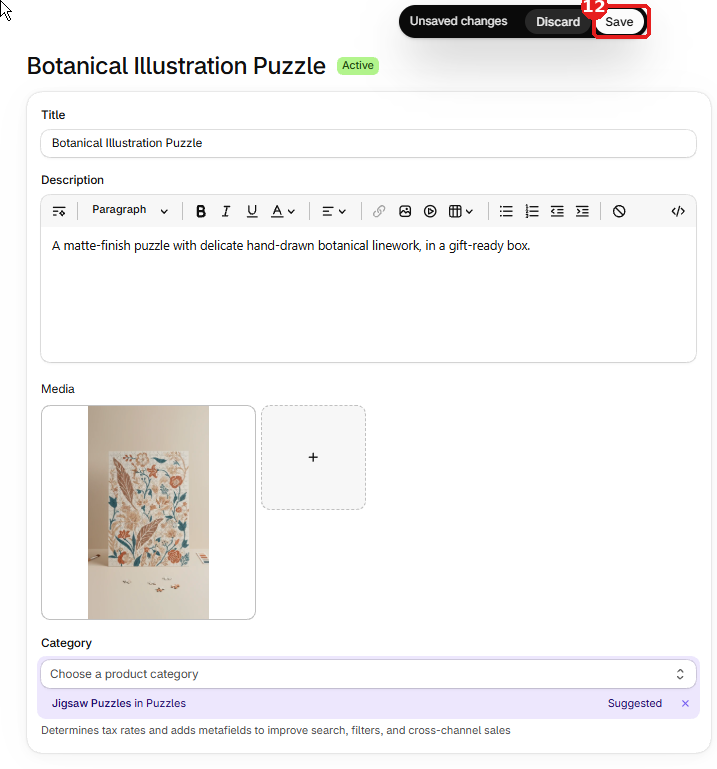
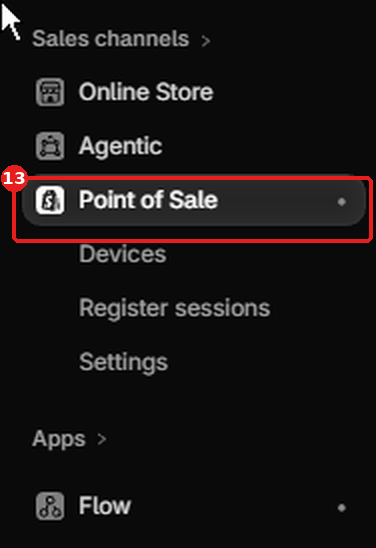
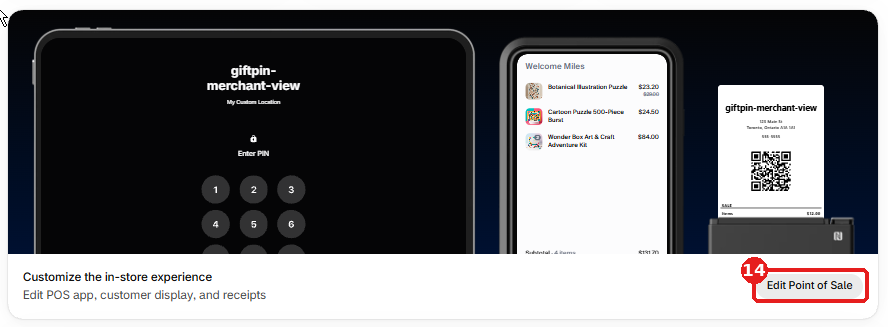
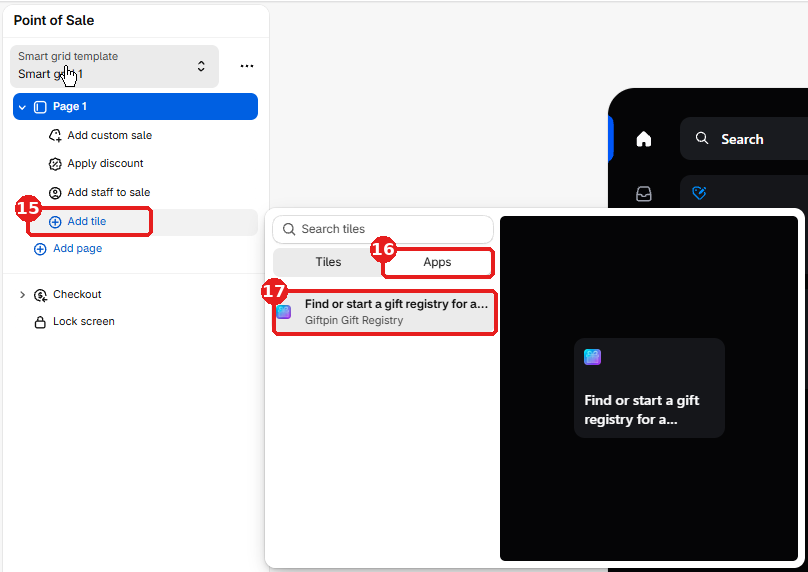
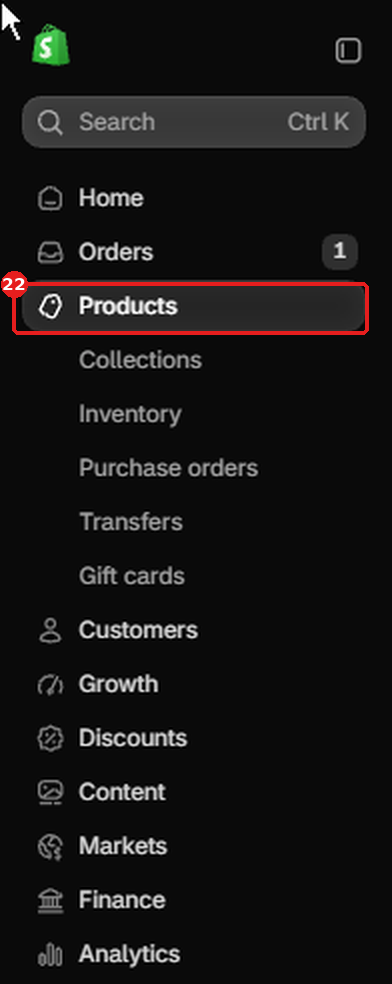
- To ring up registry gifts in Shopify POS, add the Giftpin tile: in your Shopify admin, open Point of Sale, then the POS editor, choose Add tile → Apps and pick Giftpin. Products must be published to the Point of Sale channel. Then click Save at the top right of the screen, or the tile won't appear.
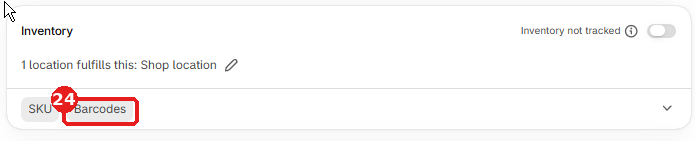
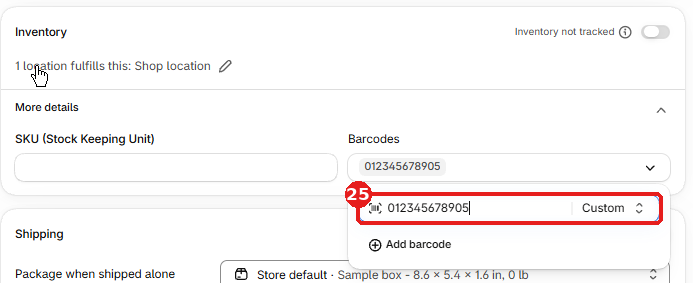
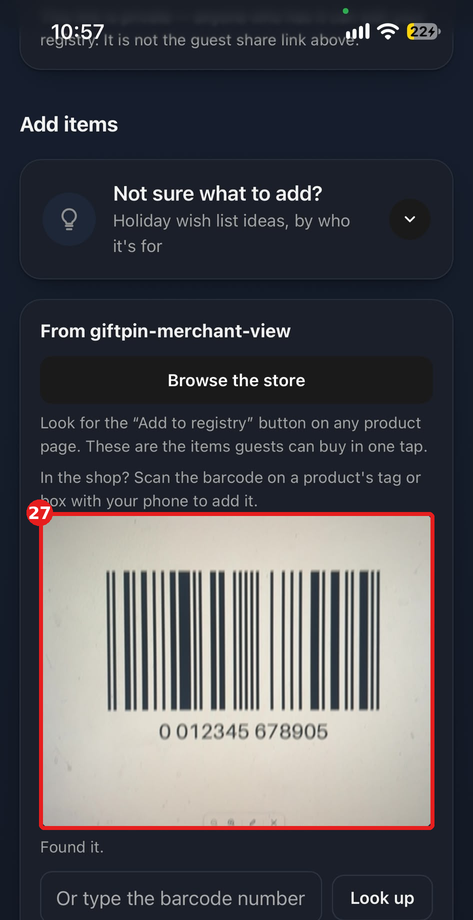
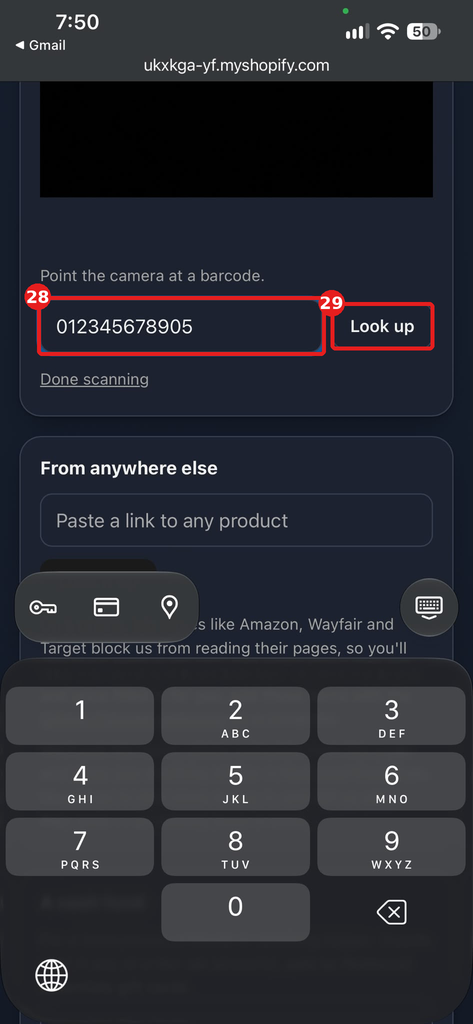
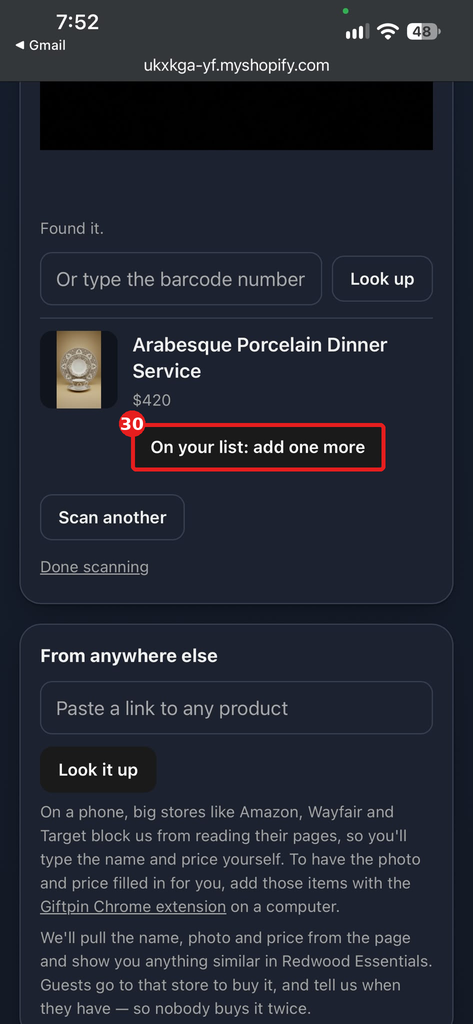
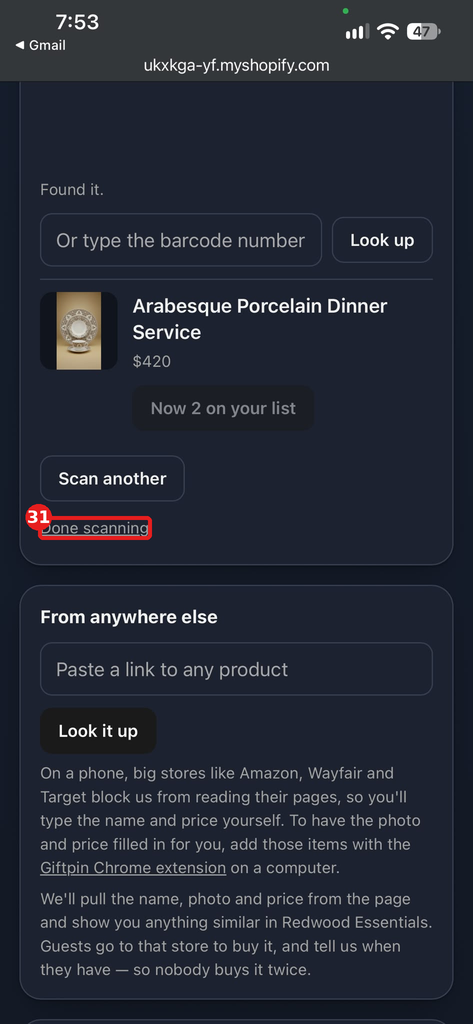
- Registrants can also scan a product's barcode with their phone in your shop to add it: they open Scan a barcode in the store on their manage page. This needs barcodes (or SKUs) on your products, and it works best with a clear, full-frame view of one barcode.
20
Shopify Flow (Pro)
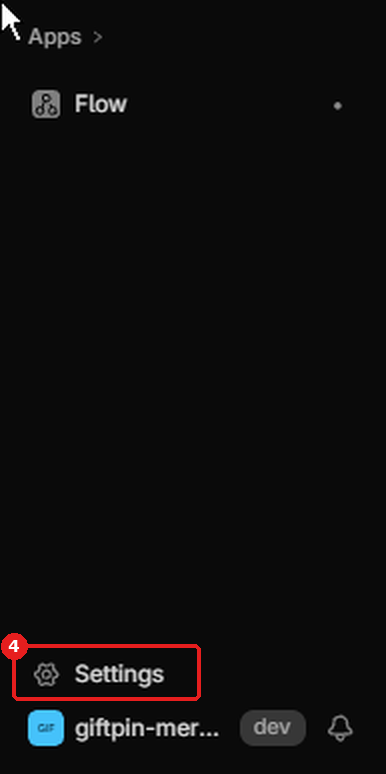
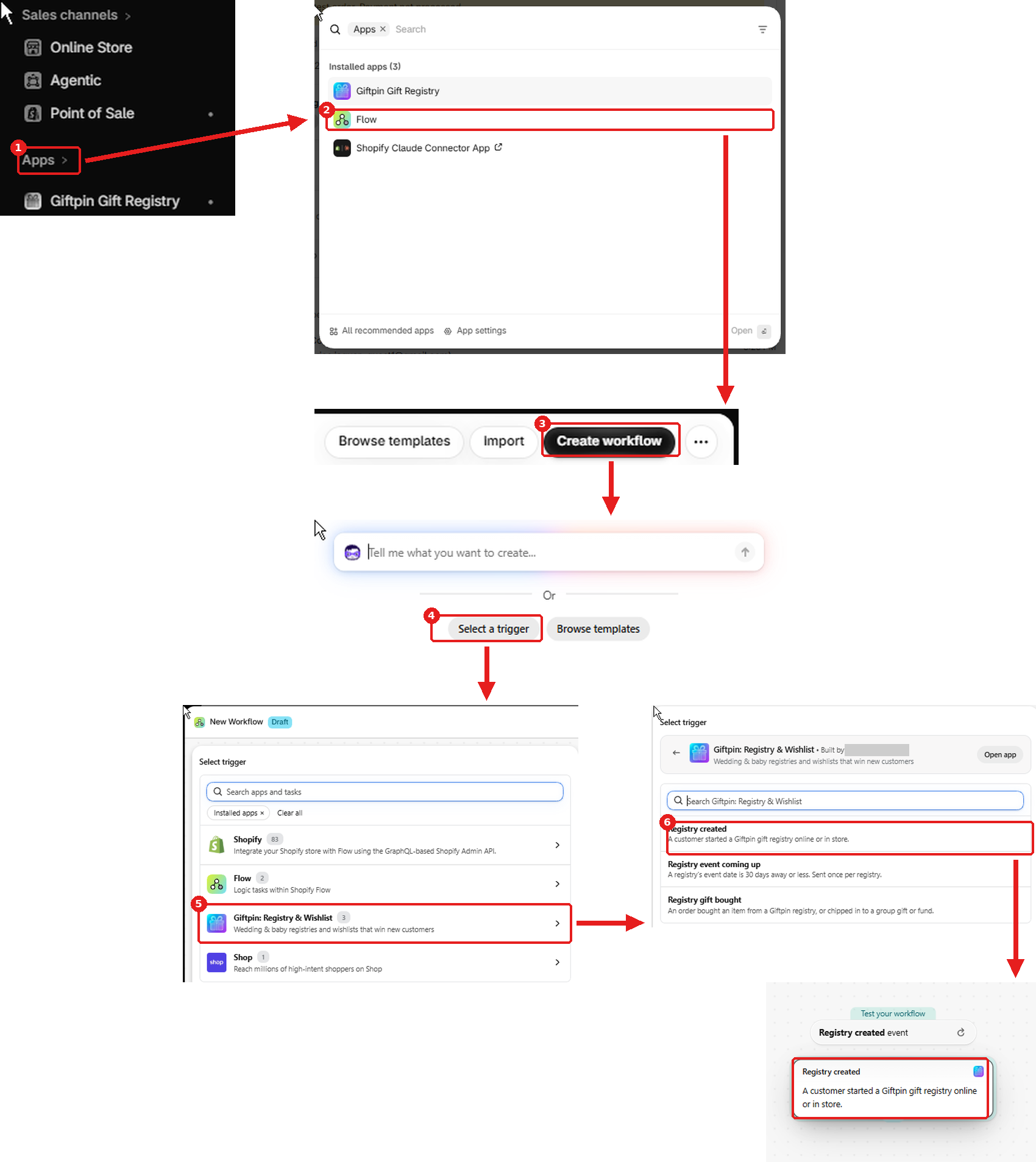
- To use them, open Apps → Flow in your Shopify admin, click Create workflow, then Select a trigger. In the list, pick the app Giftpin: Registry & Wishlist first and its three triggers appear. Searching for "Giftpin" or "registry" in the main list finds nothing: choose the app first.
- Giftpin adds three triggers to Shopify Flow: Registry created, Registry event coming up and Registry gift bought. Use them to email the registrant, tag a customer or tell your team.
- Registrant emails are for messages about their own registry. Marketing to them still needs their consent.
Ready to give your customers a registry?
Free to install from the Shopify App Store.